How to use discount coupons
Discount coupons are a great way to save on your subscription. Depending on how you received your discount, the application process may vary. Below is a guide on the ways to use coupons on our platform.
1. Personal coupon codes
Some users can receive personal coupons that are linked specifically to their account. If you have received such a coupon, you will find several visual cues on the TradingView website:
- Pop-up notifications: We will send you several pop-up notifications about available offers.
- Banners & Buttons: In addition to the above, we will typically display a full-screen banner on the main page and a banner in your profile. On each, there will be a button offering you to explore the discounts. Clicking these buttons will take you to a special pricing page that shows only the plans covered by your discount.
Once you’ve chosen the subscription, you will be forwarded straight to the payment page to complete the purchase.
2. Shared coupon codes
Not all promo codes are available on the website. Sometimes, you can receive one via email from one of our trusted partners, for example. If that’s the case, you can apply it manually during checkout. To do that:
- Select the plan on the pricing page and proceed to checkout.
- At the step where you enter your payment details, look for the "Have a promo code?" field in the right-hand corner of the screen, where the price of your subscription is given.
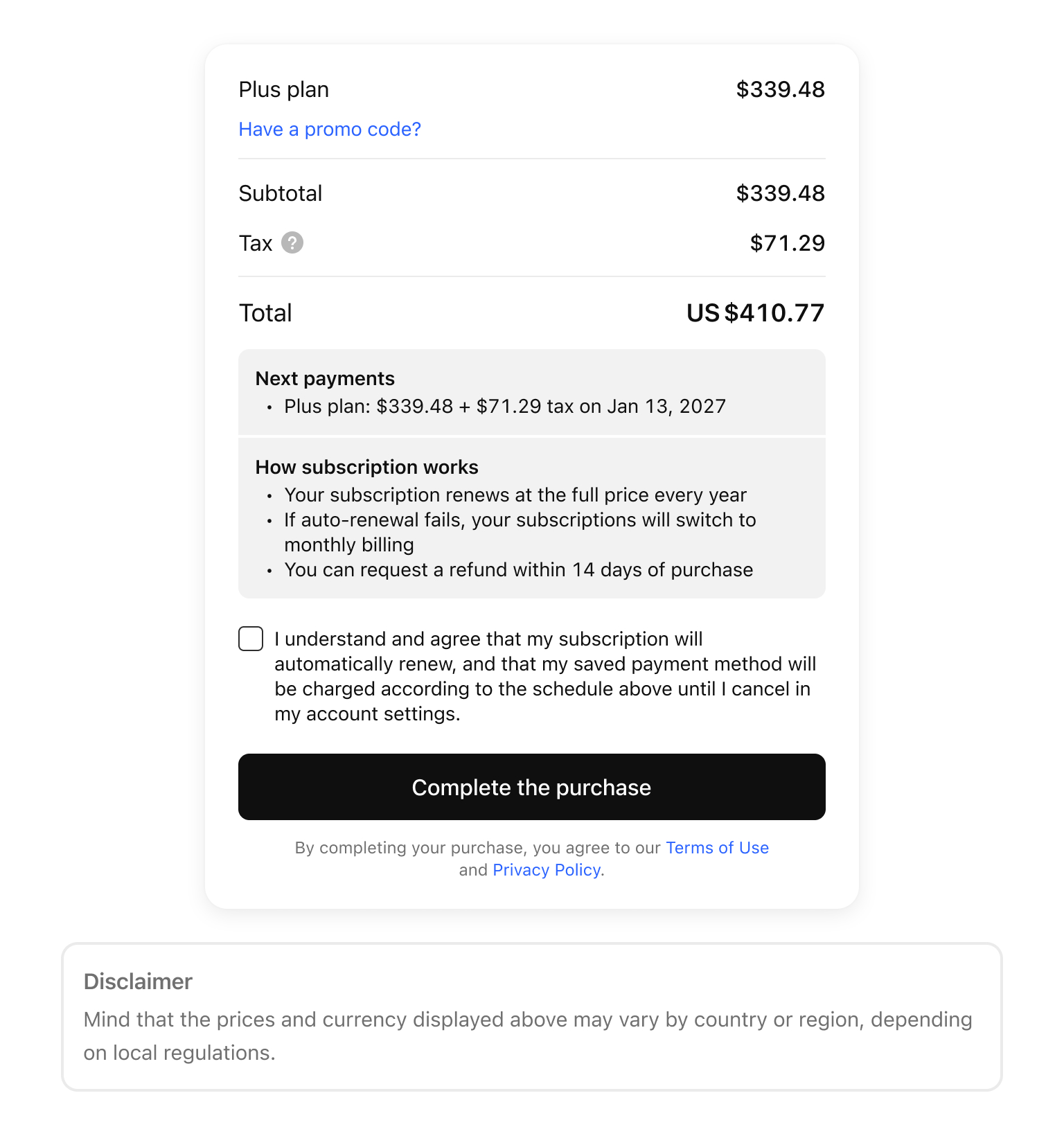
- Click on it, type or paste your code into the field, then click "Apply".
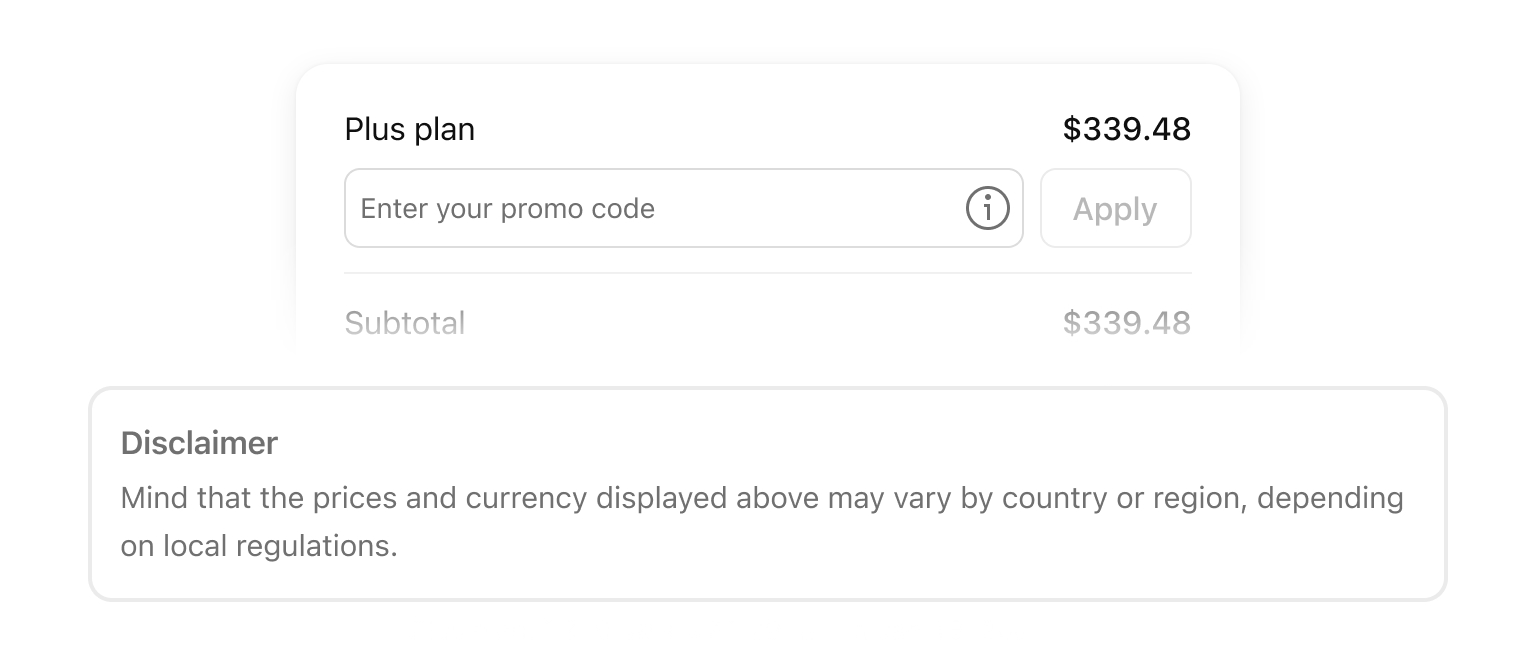
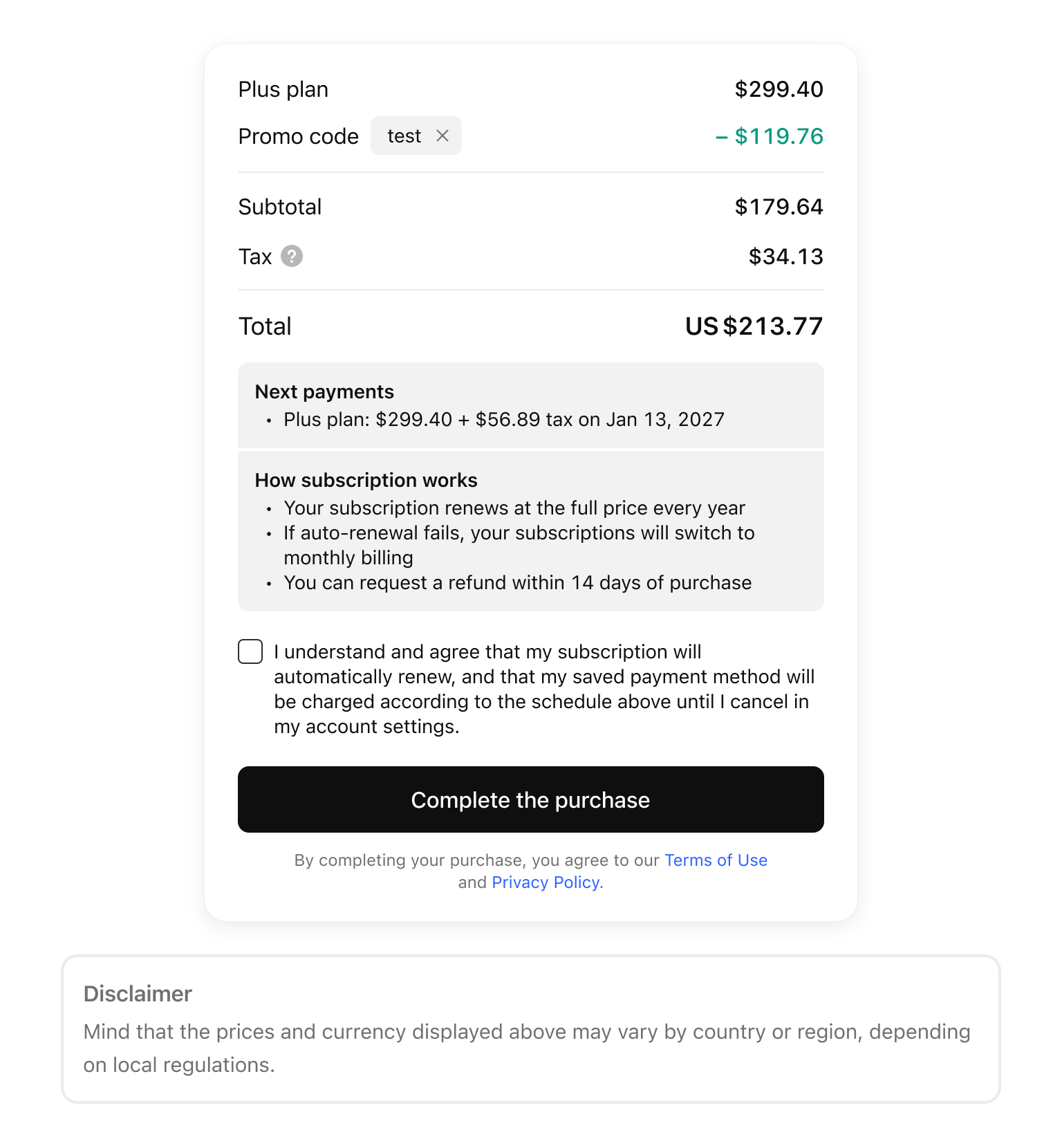
Please note that shared coupons are typically valid for a specific subscription level and billing cycle, cannot be applied to other plans, and are intended for use only once. Before completing the purchase, please verify all the information in the email you received. If everything is correct, the discount will be subtracted from the subtotal price immediately.
Note: We strongly encourage you to exercise caution. Do not open any links shared by unknown or unverified senders and share any personal information, including your billing details, with any third parties. If in doubt, please check this page or contact our support team to verify the offer's eligibility.3. Direct Promo Links
Sometimes you may receive a URL (link) offering you a discount. Such links are typically sent through official TradingView channels, e.g., via emails from @tradingview.com. Just click on the link to explore offers and proceed to checkout.
Note: We strongly encourage you to exercise caution. Do not open any links shared by unknown or unverified senders and share any personal information, including your billing details, with any third parties. If in doubt, please check this page or contact our support team to verify the offer's eligibility.Troubleshooting of some common issues
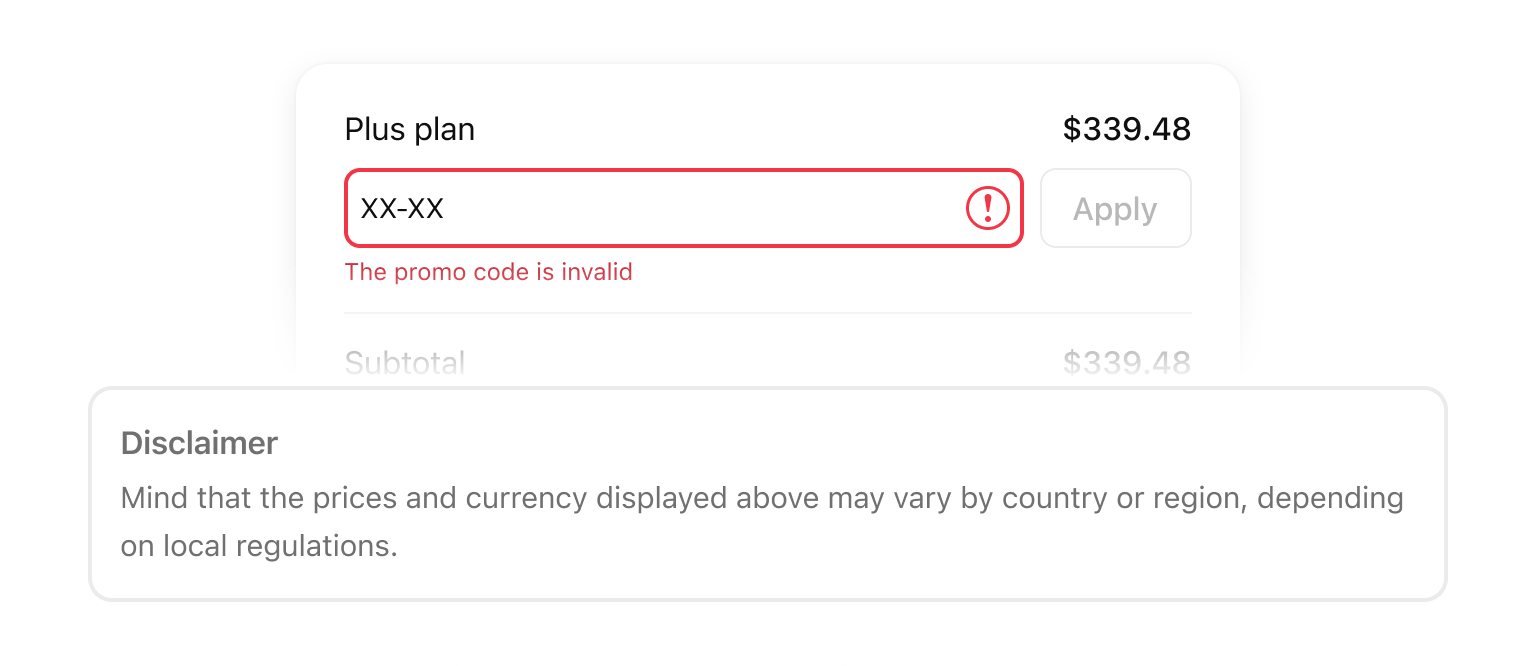
"The promo code is invalid". This error appears if the coupon has expired, doesn't match the plan in your cart, or isn't valid for your specific country. Please check the coupon terms. If you believe everything is correct but the coupon doesn’t work, contact our support team.
The "Have a promo code?" field is missing. If you are already purchasing a special offer or "deal," the coupon field will not be available. You cannot add a coupon code to an already existing discount.
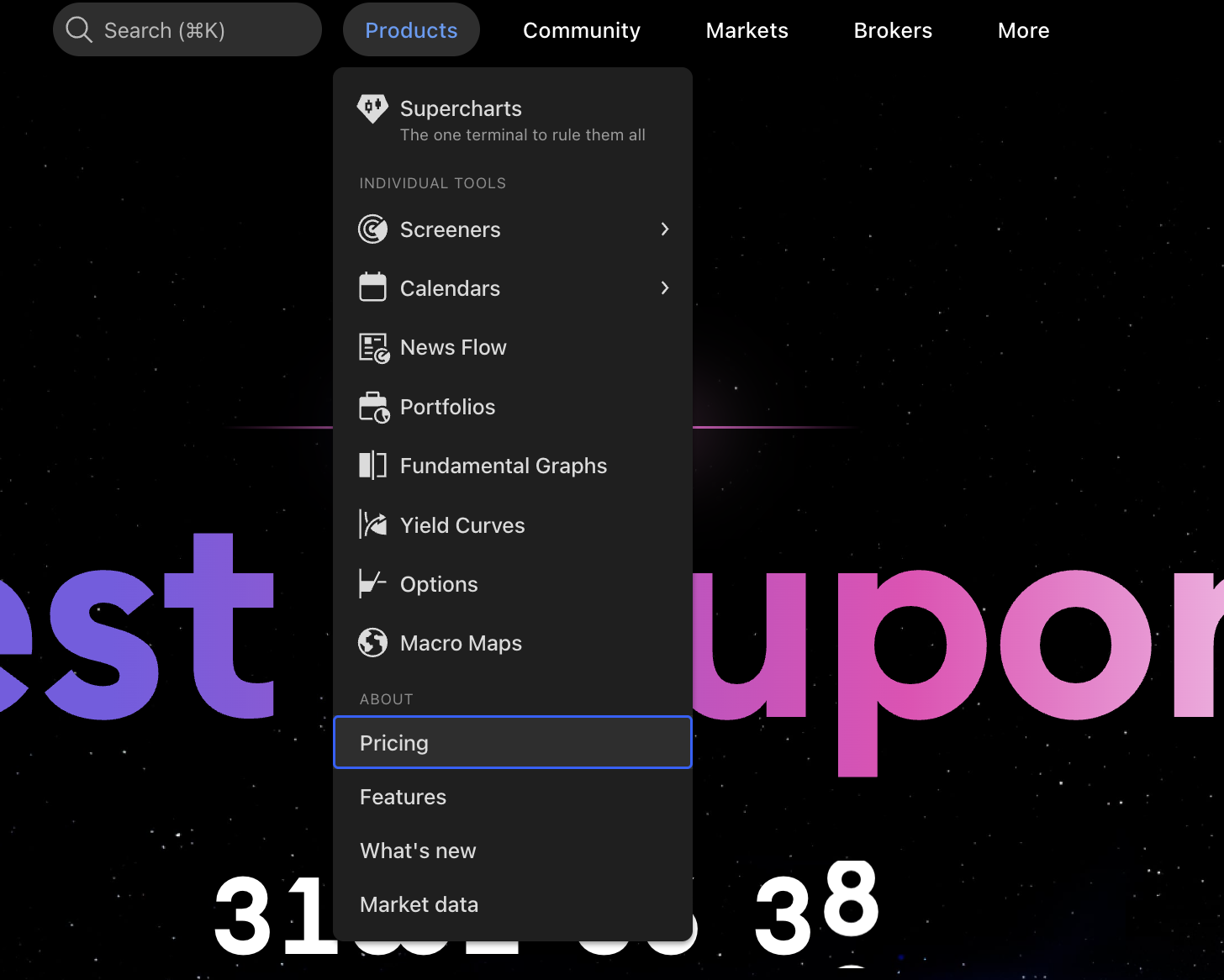
There’s a personal coupon and a special discount offer from TradingView. How to skip the coupon screen and take the offer instead? If you wish to skip the coupon promo and use a different discount offer, you need to open the regular pricing page. You can open it via Products → Pricing → Scroll down below to the offer.
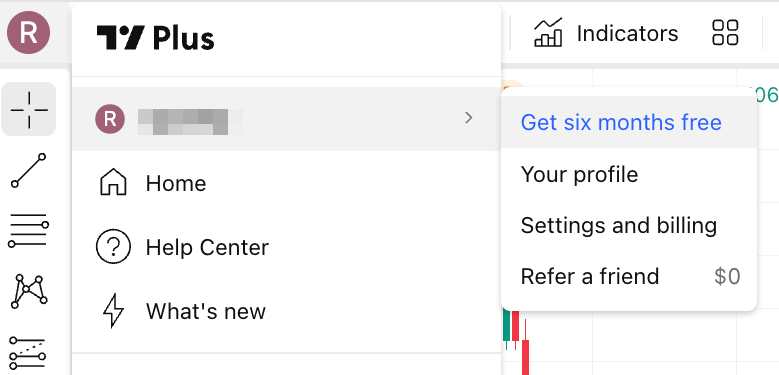
Another way is to click on the profile icon on your chart, hover over your username, and click on the offer you’d like to take.
If you do not have an alternative discount from TradingView, you will see only the screen with the personal coupon offers.
The extend button on the pricing page is grayed out, and a coupon received cannot be applied for upgrading, downgrading, or extending. This issue typically occurs when you receive a shared coupon that must be applied manually through the order window, and you already have an active subscription that cannot be extended. Subscriptions can be extended when their expiration date is less than 2 weeks ahead. If your plan is not expiring anytime soon, you will not be able to apply the coupon on the pricing page. For more info about your subscription, please visit this page.