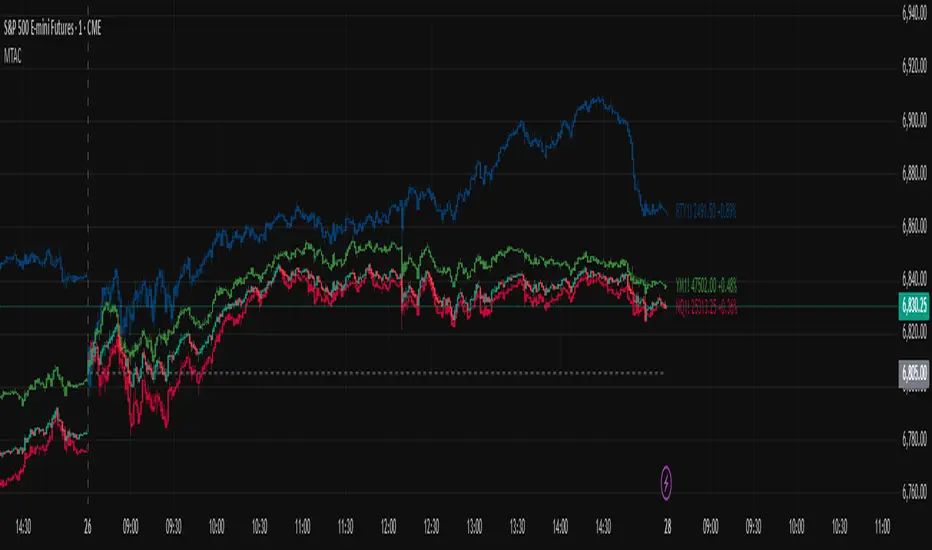
Swing Profile [BigBeluga]🔵 OVERVIEW
Swing Profile is a dynamic swing-based volume profiling tool that builds a complete volume profile for each completed market swing.
Instead of using fixed sessions or time ranges, the indicator anchors its profile strictly between confirmed swing highs and swing lows, allowing traders to analyze where volume accumulated inside each directional leg.
The profile updates in real time while a swing is still forming and finalizes once the swing direction flips, giving both historical and live insight into volume behavior.
🔵 CONCEPTS
Swing-Anchored Profiling — Volume is calculated only between confirmed swing highs and lows detected by the Swing Length input.
Directional Legs — Each bullish or bearish swing leg gets its own independent volume profile.
ATR-Adaptive Bins — Profile bin size is automatically scaled using ATR, keeping resolution consistent across volatility regimes.
Real-Time Rebuild — While a swing is still active, the profile continuously recalculates and redraws.
Finalized Profiles — Once direction flips, the profile is locked and marked as a completed swing.
🔵 FEATURES
Swing Volume Profile — Displays horizontal volume distribution for each swing leg.
Point of Control (PoC) — Highlights the price level with the highest traded volume inside the swing.
Buy / Sell Volume Separation — Tracks bullish (buy) and bearish (sell) volume inside each profile.
Delta Volume Calculation — Shows net buying vs selling pressure as a percentage.
Profile Outline — A polyline traces the outer shape of the volume distribution.
HeatMap Mode — Optional heatmap visualization showing volume intensity by color gradient.
ZigZag Swing Connector — Visual connection between swing highs and lows for structure clarity.
Custom Label Sizing — Adjust label size (Tiny → Huge) for clean chart scaling.
🔵 HOW TO USE
Identify High-Interest Zones — Use the PoC to locate price levels where the market spent the most time during a swing.
Trend Strength Analysis — Strong directional swings often show volume skewed toward one side of the profile.
Pullback Zones — Profiles help identify areas where price may react during retracements.
Continuation vs Reversal — Delta volume reveals whether buying or selling dominated the swing.
Live Monitoring — While a swing is forming, watch the real-time profile to anticipate where structure may complete.
🔵 DATA LABELS
T — Total traded volume inside the swing.
B — Buy volume (bullish candles).
S — Sell volume (bearish candles).
D — Delta volume (% difference between buy and sell volume).
🔵 CONCLUSION
Swing Profile delivers a precise, structure-aware view of volume by anchoring profiles directly to market swings.
By combining real-time profiling, PoC detection, delta analysis, and adaptive resolution, it provides deep insight into where participation truly occurred — making it a powerful tool for swing traders, structure traders, and volume-focused strategies.
Göstergeler ve stratejiler
[MAD] Gann o MaticusGannomat — Full Automated Gann Grids & Astro Cycles
Automatic Gann quadrant boxes with geometric arc projections. Cycle boundaries from standard timeframes or real planetary astronomy.
Thanks BarefootJoey, master of Astrolib
What Does This Indicator Do?
Gannomat draws a Gann quadrant box on your chart — a rectangle where the width represents a time period and the height represents a price range. Inside each box, it projects geometric arc curves from all four corners at multiple proportional levels (1x0 through 5x0, plus diagonal variants 1x1 through 5x1). These arcs create a web of curved support and resistance lines based on the time–price geometry of the quadrant.
Each time a new period begins — either a new timeframe candle or a new astronomical event — the box resets and a fresh set of arcs is drawn.
The indicator also plots pivot point markers (R3, R2, R1, PP, S1, S2, S3) as small circles whenever their values change, and draws diagonal cross lines connecting opposite corners of the box.
When using Astrocycles mode, an info table in the top-right corner shows the active planet, cycle type, current cycle duration in days, and the dates of the last and next astronomical event.
━━━━━━━━━━━━━━━━━━━━━━━━━━━━━━
INPUT REFERENCE
━━━━━━━━━━━━━━━━━━━━━━━━━━━━━━
General
Line Width (Default: 1) — Thickness of all drawn lines and arc curves. Increase for better visibility on higher-resolution screens.
Box Color (Default: Gray 50%) — Color of the quadrant box outline, its vertical/horizontal edges, and the diagonal cross lines.
Gann Circles Color (Default: Blue) — Color reserved for Gann circle overlays.
Cleanup Old Drawings (Default: On) — When enabled, previous box and arc drawings are removed when a new period starts. Turn off if you want to keep all historical boxes visible.
Time Settings
Timeframe / Cycle (Default: 1 Day) — This is the most important setting. It controls how wide each Gann box is.
Available options:
15 Min, 1 Hour, 4 Hours, 6 Hours, 8 Hours, 12 Hours — Intraday periods. Use these on lower timeframe charts (1m–15m–1H).
1 Day — One trading day. The most common starting point.
1 Week, 2 Weeks, 3 Weeks, 4 Weeks — Weekly periods. Good for swing trading on daily charts.
1 Month, 3 Months, 6 Months — Monthly/quarterly periods. Use on daily or weekly charts for longer-term analysis.
Astrocycles — The box width is no longer a fixed timeframe. Instead, each new box begins when a specific planetary event occurs (configured in Astro Settings). The box width varies from cycle to cycle based on the actual interval between consecutive events.
Astro Settings
These settings only take effect when Timeframe / Cycle is set to Astrocycles .
Astro Planet (Default: Moon) — Which celestial body drives the cycle timing. Each planet has a different orbital period, producing cycles of different lengths:
Moon — ~27 days per cycle. Fast cycles, good for daily charts.
Mercury — ~88 days. Short inner-planet cycles.
Venus — ~225 days. Medium cycles.
Mars — ~687 days (~1.9 years). Good for weekly charts.
Jupiter — ~12 years. Long-term cycles for monthly charts.
Saturn — ~29 years. Very long-term structural cycles.
Uranus, Neptune, Pluto — Multi-decade to multi-century cycles. For the longest-term analysis.
Astro Cycle (Default: High Latitude) — The type of astronomical event that marks the start of each new period:
High Latitude — The planet reaches its maximum ecliptic latitude (furthest above the ecliptic plane). Works for all planets including Moon.
Low Latitude — The planet reaches its minimum ecliptic latitude (furthest below the ecliptic plane). Works for all planets including Moon.
High Longitude — The planet reaches a stationary point where its geocentric longitude stops increasing and begins to decrease (start of retrograde motion). This is the retrograde station . Not applicable to Moon.
Low Longitude — The planet reaches a stationary point where its geocentric longitude stops decreasing and begins to increase again (end of retrograde / start of direct motion). This is the direct station . Not applicable to Moon.
Heliocentric Conjunction — Earth and the selected planet are aligned on the same side of the Sun (0° heliocentric separation). Not available for Moon.
Heliocentric Opposition — Earth and the selected planet are on opposite sides of the Sun (180° heliocentric separation). Not available for Moon.
Show Info Table (Default: On) — Displays a panel in the top-right corner showing: Cycle Type, Planet, Duration (days), Last Event date, and Next Event date (UTC).
Quadrant Scaling
These settings control the height (Y-axis / price range) of each Gann box.
Scale Mode (Default: Classic Pivots) — How the top and bottom price levels of the box are calculated:
Classic Pivots — The box height is defined by two pivot levels you choose (see Upper/Lower Pivot below). In standard timeframe mode, pivots are calculated from the previous period's High, Low, Close via request.security. In Astrocycles mode, pivots are calculated from the previous astronomical cycle's High, Low, Close.
Prev Cycle Range — The box height equals the High-to-Low range of the previous completed cycle. This adapts the box to actual market movement. If no previous cycle data is available yet, falls back to Classic Pivots.
Donchian Channel — The box top is the highest high and the box bottom is the lowest low over the last N bars (set by Donchian Len).
ATR Bands — The box is centered on a base price (Close, HL2, or EMA) and extends upward/downward by ATR × Multiplier. This creates volatility-adaptive boxes.
StdDev Bands — Same concept as ATR Bands but uses standard deviation instead. Similar to Bollinger Band width. The box is centered on a simple moving average.
Percentile Channel — The box top is the upper percentile of highs and the box bottom is the lower percentile of lows over the lookback period. This provides a statistical price range.
Upper Pivot (Default: R3) — Which pivot level defines the top of the box. Only used when Scale Mode is Classic Pivots. Options: R3, R2, R1, PP, S1, S2, S3.
Lower Pivot (Default: S1) — Which pivot level defines the bottom of the box. Only used when Scale Mode is Classic Pivots. Options: R3, R2, R1, PP, S1, S2, S3.
Base Source (Default: Close) — Center line for ATR Bands and StdDev Bands modes. Close uses the closing price, HL2 uses the midpoint of high and low, EMA uses an exponential moving average.
Donchian Len (Default: 20) — Lookback period in bars for the Donchian Channel highest-high / lowest-low calculation.
ATR Len (Default: 14) — Lookback period for the Average True Range calculation.
ATR Mult (Default: 2.0) — How many ATRs above and below the base price to extend the box.
StdDev Len (Default: 20) — Lookback period for the standard deviation calculation.
StdDev Mult (Default: 2.0) — How many standard deviations above and below the SMA to extend the box.
Pct Len (Default: 50) — Lookback period for the percentile calculation.
Low % (Default: 10) — Lower percentile threshold (0–49). A value of 10 means the box bottom is at the 10th percentile of lows.
High % (Default: 90) — Upper percentile threshold (51–100). A value of 90 means the box top is at the 90th percentile of highs.
Min Height (ATR Mult) (Default: 0.5) — Minimum allowed box height, expressed as a multiple of the current ATR. If the calculated box height is smaller than this, the box is expanded symmetrically around its midpoint. Set to 0 to disable. Useful to prevent collapsed or invisible boxes during low-volatility consolidation.
Pivot Colors
R3 Color (Default: Dark Green #004900)
R2 Color (Default: Medium Green #006F00)
R1 Color (Default: Bright Green #009600)
PP Color (Default: Gray #555555)
S1 Color (Default: Red #FF0000)
S2 Color (Default: Red-Pink #FF002A)
S3 Color (Default: Deep Pink #FF014A)
Each pivot level is plotted as a small circle marker on the chart whenever its value changes. The color scheme gives a visual gradient from green (resistance) to red (support).
Arc Colors
Arc Level 1 Color (Default: Orange) — Color for the smallest arcs: 1x0, 1.5x0, and 1x1.
Arc Level 2 Color (Default: Lime) — Color for 2x0 and 2x1 arcs.
Arc Level 3 Color (Default: Green) — Color for 3x0 and 3x1 arcs.
Arc Level 4 Color (Default: Teal #40826D) — Color for 4x0 and 4x1 arcs.
Arc Level 5 Color (Default: Blue) — Color for the largest arcs: 5x0 and 5x1.
Arc Inv 4x0 Color (Default: Aqua) — Dedicated color for the inverted 4x0 arc, so it can be visually distinguished from the normal (bottom-up) version.
Each arc level represents a different proportion of the quadrant. Smaller arcs (Level 1) curve tightly near the origin corner, while larger arcs (Level 5) sweep across the full box width. The "x1" variants (1x1, 2x1, etc.) are diagonal-offset versions that sit between the round-number levels.
━━━━━━━━━━━━━━━━━━━━━━━━━━━━━━
HOW TO USE
━━━━━━━━━━━━━━━━━━━━━━━━━━━━━━
Getting Started (Standard Mode)
Add the indicator to your chart.
Set Timeframe / Cycle to match the period you want to analyze. For example, on a 1-hour chart analyzing daily structure, choose "1 Day".
Leave Scale Mode on Classic Pivots with Upper = R3, Lower = S1 as a starting point. This gives you a box spanning from the first support to the third resistance.
Observe how price interacts with the arc curves. The arcs act as curved support/resistance levels — price often reverses or accelerates near these lines.
Adjust Upper/Lower Pivot to widen (R3/S3) or narrow (R1/S1) the box depending on volatility.
Using Astrocycles Mode
Set Timeframe / Cycle to Astrocycles .
Choose a Planet . Start with Moon for fast cycles on daily charts, or Jupiter/Saturn for long-term cycles on weekly/monthly charts.
Choose a Cycle type. High Latitude is a good general-purpose starting point since it works for all planets.
Enable Show Info Table to see the current cycle duration and event dates.
For scaling, try Prev Cycle Range — it pairs naturally with Astrocycles because it sizes each new box based on the price action of the previous planetary cycle.
Choosing a Scale Mode
Use Classic Pivots for traditional Gann analysis with well-defined pivot-based boundaries.
Use Prev Cycle Range when you want boxes that reflect actual market range — especially good with Astrocycles.
Use ATR Bands or StdDev Bands when you want the box to automatically adapt to changing volatility conditions.
Use Donchian Channel for a simple recent-range approach.
Use Percentile Channel for a statistical approach that filters out extreme spikes.
Reading the Arcs
Bottom-up arcs (normal) rise from the lower-left corner of the box. They represent potential support curves during an uptrend.
Top-down arcs (inverted) fall from the upper-left corner. They represent potential resistance curves during a downtrend.
The right-side arcs (mirrored from the right corners) appear in the current box via polyline drawing, creating the full four-corner Gann circle pattern.
When multiple arcs from different levels converge at the same point, that creates a confluence zone — a stronger potential reaction area.
The diagonal cross lines show the direct price-time relationship (1:1 ratio) across the box.
Tips
If boxes appear too flat or collapsed, increase Min Height (ATR Mult) from 0.5 to 1.0 or higher.
The chart timeframe should be lower than the selected period. For example, use a 1H chart with a 1 Day period, or a Daily chart with a 1 Week period. This ensures enough bars exist within each box for the arcs to render smoothly.
For Heliocentric Conjunction/Opposition cycles, remember these are only available for planets other than the Moon. These cycles correspond to synodic periods (the time between successive alignments as seen from the Sun).
High/Low Longitude cycles detect retrograde and direct stations — moments when a planet appears to change direction in the sky. These are astronomically significant turning points often studied in financial astrology.
Breakout Volume Delta | Flux ChartsGENERAL OVERVIEW:
Breakout Volume Delta is an indicator that measures breakout strength using lower-timeframe volume delta. It estimates buyer vs. seller participation within the breakout candle by summing bullish and bearish sub-candle volumes, then visualizes that dominance by splitting the candle body into bullish and bearish segments.
https://www.tradingview.com/x/UuFy5eif/
What is the theory behind the indicator?:
Breakouts often look strong on price alone, but their quality depends on participation. A breakout candle that is driven by dominant buying or selling pressure is generally more meaningful than a breakout candle that forms with mixed or weak participation.
This indicator gauges participation using lower timeframe volume delta. It breaks the current candle into lower timeframe sub-candles, sums volume on bullish sub-candles as bullish volume, and sums volume on bearish sub-candles as bearish volume. Those totals are converted into dominance percentages.
The breakout candle is then visualized using a split-body overlay: the portion sized by the dominant side is shown in the breakout color, and the remaining portion is shown as the opposite side. This makes it easy to judge whether the breakout candle was supported by real directional participation or if the opposite side was active inside the same candle.
Bullish dominant breakout candle:
Bearish dominant breakout candle:
FEATURES:
🔹Swing Left and Right
Controls how many swing-timeframe candles are required on the left and right side to confirm a swing point before a level is drawn. Higher values reduce noise by requiring stronger confirmation. Higher values increase confirmation delay because more candles are needed to validate the pivot.
🔹Swing Timeframe
Selects the timeframe used to detect swing levels. Default setting uses the chart timeframe. Creates each swing timeframe candle by combining the smaller candles inside it, then tracks the highest high and lowest low made during that period. Saves the exact time when those highs and lows happened so levels can be placed accurately on lower timeframes.
Swing levels detected on a higher timeframe and shown on a lower timeframe chart:
🔹Volume Delta LTF
Selects the lower timeframe used to estimate buy vs sell participation inside each breakout candle.
Bull volume sums volume from sub-candles where close is above open.
Bear volume sums volume from sub-candles where close is below open.
Converts those totals into bullish and bearish dominance percentages.
Volume delta label showing bullish and bearish dominance:
🔹Breakout by
Controls how a swing level is considered broken.
Wick mode confirms a break when the wick crosses the level.
Close mode confirms a break only when the candle closes beyond the level.
Close breakout:
Wick breakout:
🔹Show Nearest
Limits how many of the most recent swing levels remain visible on the chart. Deletes older levels once the stored level count exceeds the chosen number.
Only the most recent swing levels shown on the chart:
🔹Breakout Volume Filter
Optional filter that only validates a breakout if the breakout candle shows enough dominance from the breakout side.
Bullish breakouts require bullish dominance to exceed the threshold.
Bearish breakouts require bearish dominance to exceed the threshold.
If the filter fails, the affected level is removed instead of being marked as broken.
Bullish breakout with Breakout Volume Filter activated:
Bearish breakout with Breakout Volume Filter activated:
🔹Unmitigated Levels
Controls how live (unmitigated) swing levels are drawn. Users can customize the Line style, thickness, and colors for live levels.
Live levels shown with unmitigated styling:
🔹Broken Levels
Controls how a level looks after it breaks and locks it to the breakout bar. Switches the level to broken style, width, and color, and stops extending and ends at the breakout candle time.
🔹Volume Delta
Controls the colors used for bullish and bearish dominance on the split-body overlay.
🔹Extend Levels
Controls how far levels extend forward when Extend Right is disabled.
🔹Extend Right
When enabled, levels extend all the way to the right instead of stopping at a fixed future point.
🔹Volume Delta Labels
Optional volume delta labels that print bullish and bearish volume with dominance percentages on breakout bars.
Shows bull and bear volumes plus percentages.
Places label above bullish breakouts and below bearish breakouts.
UNIQUENESS:
Breakout Volume Delta is unique because it visualizes breakout strength directly on the breakout candle using lower timeframe buy vs sell dominance, instead of relying on price action alone.
Breakout strength is shown inside the breakout candle by splitting the body into bullish and bearish participation segments.
Lower timeframe activity is mapped onto the higher timeframe candle so dominance is visible exactly where the breakout happened.
Swing levels provide breakout context, while the split-body overlay explains how much real participation supported the move.
Chart-clean design keeps the display readable by limiting how many levels remain on screen.
HTF Floating Candles w/ Volume Footprint [theUltimator5]This indicator is designed to pull higher-timeframe candles outside of the chart, and add the footprint volume data to give a complete snapshot of the Higher Timeframe (HTF) trading range and volume data without cluttering your view.
IMPORTANT!
This uses the new request.footprint() call, which may make this indicator only available to premium TradingView users.
The request.footprint() doesn't assume all buy volume or all sell volume based on the direction of a candle, but instead uses actual footprint information to construct the volume footprints.
Instead of forcing you to mentally reconstruct the most recent daily (or weekly/monthly) candle(s) while watching lower-timeframe price action, this script draws floating HTF candles to the right side of the chart and updates it live as the higher-timeframe bar develops. The default number of HTF candles is 1, but you can add up to 10 HTF candles.
It also builds a row-by-row volume distribution across the active HTF candle price range and separates it into buy-side vs sell-side volume, displayed on opposite sides of the candle. This gives you a quick visual read on where volume has been concentrated inside the higher-timeframe structure — not just where price traveled.
If you don't like seeing buy and sell volume on separate sides of the candles, you can stack them all on the left side like traditional volume footprint indicators.
You can also plot the horizontal lines backwards on the chart to show where the high and low points for the candle occurred.
If you want more than 1 HTF candle, you can plot multiple. The volume footprint shows the volume profile of the entire plotted HTF candle range.
You can configure the following display options:
Position and size of HTF candles
Number of HTF candles
HTF timeframe
Volume profile layout style
Number of volume profile bars
Width of volume profile bars
Colors & transparency
Horizontal high/low toggle
This indicator isn't a standalone trading indicator, but it is a visualization enhancement tool to give you a clean picture of the higher timeframe's price and volume data without the clutter.
Earnings Snapshot [Trendoscope]🎲 Overview
The Earnings Snapshot is a custom indicator designed to provide traders and investors with a quick, visual overview of a stock's earnings performance and its impact on price action. This tool automates the analysis of earnings reports by fetching historical and future earnings data, calculating growth metrics for both earnings and price changes, and presenting the information in an intuitive table format on the chart. It also adds interactive labels at key earnings dates for detailed breakdowns.
During the earning season, I was trying to understand the earnings and revenue growth of microsoft in comparison with thier price growth. This involved tidious process of taking scereenshot of multiple earning reports and then drawing correlations between them.
This script eliminates the tedium of manual data gathering and visualization. It focuses on key metrics like actual vs. estimated earnings, year-over-year (Y2Y) comparisons, and future estimates, while highlighting how these events correlate with price movements. Currently, the script handles earnings per share (EPS) data effectively, but revenue details are not included due to ongoing technical challenges with the available data interfaces in Pine Script. Future updates may incorporate revenue analysis once we find an effective way to present this data.
This indicator is ideal for fundamental analysis, earnings season preparation, or post-earnings reviews, helping users spot patterns such as earnings surprises, growth trends, or price reactions.
🎲 Key Features
Earnings Data : Retrieves actual, estimated, and standardized EPS from TradingView's built-in request.earnings function.
Growth Calculations : Computes percentage changes in earnings and price compared to the previous quarter (Last), year-over-year (Y2Y, based on 4 quarters back), and future estimates.
Visual Table Display : A customizable table in the top-right corner showing dates, growth percentages, and color-coded indicators (lime for positive growth, orange for negative).
On-Chart Infomration : Based on the settings, users can enable presentation of earnings, price and the growth data on chart.
Historical Depth : Configurable history lookback (up to 24 quarters) to analyze past earnings.
Tooltip Mode: For a cleaner chart, labels show a score summary with full details available on hover.
Future Earnings Integration: Includes upcoming EPS estimates and their projected growth from the last actual earnings.
🎲 Display Modes
🎯Tooltip Mode
If we select tooltip mode, it is better to chose the label size as either large or huge for better visibility. In tooltip mode, the data is not directly presented on the screen. Instead, we display the calculated score on the earnings release bar. The earnings and price growth info will show up upon hovering on the printed score value.
🎯Text Mode
In case of text mode, all the calculated earnings and price growth data is printed directly on the chart. This will provide easier access to the data. However, it fills the chart. It is usefull for people who do not use additional indicators on the same chart or someone who trades mainly based on the earnings reports.
🎯Tabular Data
Tabular data presents the growth of Earnings and Price based on last quarter as well as Y2Y along with growth of estimated earnings. The table can be hidden through input settings.
🎲 Diving Deep
🎯Information Gathered and Presented
At present, we have tried collating and presenting following information for every earnings.
Q2Q Earnings Growth
Q2Q Price Growth
Y2Y Earnings Growth
Y2Y Price Growth
Q2Q Future Estimated Earning Growth
🎯 Calculation of Score and Color coding
When in text mode, the information of earnings and price growth are printed on the chart completely. These displays are color coded based on a calculated score. You can also see the score directly on the chart when the display mode is tooltip mode. Let us try to understand how this score is calculated.
Score is nothing but combination of different factors of price and earnings growth. Following conditions are considered for the calculation.
If Earnings growth is positive, add 1 else reduce the score by 1
If price growth is positive, add 1 else reduce the score by 1
If Earnings growth percent is higher than price growth percent, then add 1, else reduce the score by 1
Similar calculations are repeated for Y2Y earning and price growth. Finanlly the score also looks at if the future estimated earning is expected to increase from current actual earnings or is it expected to reduce.
Since there are 7 factors, the score can vary from -7 to +7. Higher the score, the greener the text background will be and lesser the score, the text background will turn more towards red.
🎯 Limitations
Assumes quarterly earnings; irregular reporting schedules may affect Y2Y accuracy.
Historical depth is limited to 24 quarters to avoid performance issues, but can be adjusted.
Works best on daily/weekly timeframes where earnings bars are visible.
No alerts or backtesting integration; this is purely a visualization tool.
🎯 Example of Interpretations
A green label with positive growth in both earnings and price suggests a strong beat with bullish reaction.
Orange cells in Y2Y might indicate slowing growth despite a recent beat.
Negative future estimates could signal caution for upcoming reports.
If you encounter issues or have suggestions, feel free to provide feedback. This script aims to streamline your manual analysis—happy trading!
Market Structure Dashboard | Flux ChartsGENERAL OVERVIEW
Market Structure Dashboard is a multi-timeframe market structure analysis indicator. It combines EMA trend detection, swing high/low tracking, market structure labels, Order Block detection, Fair Value Gap detection, liquidity sweep detection, volume analysis, volatility analysis, trading sessions, ICT killzones, a weighted trend bias system, and HTF levels into one unified dashboard. Each component is calculated independently across up to 7 configurable timeframes and displayed together in a single organized view.
(Screenshot: Full dashboard overview - all sections visible)
(Screenshot: Dashboard on a busy chart showing OB/FVG boxes, swing labels, HTF lines)
WHAT IS THE THEORY BEHIND THIS INDICATOR?
The core idea is that a trade setup becomes more reliable when multiple timeframes agree on direction. A bullish signal on a 5-minute chart carries more weight when the 15-minute, 1-hour, and daily timeframes also show bullish conditions. Analyzing each timeframe separately is both time-consuming and prone to error. The Market Structure Dashboard automates this process by calculating key metrics across all enabled timeframes and presenting them side by side.
The indicator draws from two established trading methodologies. Smart Money Concepts (SMC) focuses on identifying institutional footprints in price action through patterns like Order Blocks, Fair Value Gaps, and liquidity sweeps. Inner Circle Trader (ICT) methodology emphasizes time-based analysis through specific trading windows called killzones and the importance of previous day, week, and month highs and lows.
Rather than treating these concepts in isolation, the dashboard organizes them into a layered framework. Structure shows where the market has been. Zones show where it may react. Sessions and killzones show when activity tends to increase. The trend bias system combines all factors into a single weighted score, giving traders a quick read on overall market sentiment across timeframes.
The purpose of the Market Structure Dashboard is to present the current market activity across multiple timeframes and how these conditions relate to earlier market structure, volume, and timing.
(Screenshot: Multi-timeframe confluence example - all TFs showing bearish alignment)
(Screenshot: Multi-timeframe disagreement example - mixed signals across TFs)
MARKET STRUCTURE DASHBOARD FEATURES
The Market Structure Dashboard indicator includes 14 main features:
EMA Trend Detection
Swing High/Low Tracking
Market Structure Labels (HH/HL/LH/LL)
Order Block Detection
Fair Value Gap Detection
Liquidity Sweep & Reclaim Detection
Volume Analysis
Volatility Analysis
Trading Sessions
ICT Killzones
Trend Bias System
HTF Levels (PDH/L, PWH/L, PMH/L)
Visual Overlays
Dashboard Customization
Each component operates independently while sharing the same underlying market structure logic. All features are calculated across up to 7 user-configurable timeframes and displayed in a unified dashboard. Detailed explanations for each component are provided in the sections that follow.
EMA TREND DETECTION
🔹 What is an EMA?
An Exponential Moving Average (EMA) is a type of moving average that gives more weight to recent price data. Unlike a Simple Moving Average that weights all prices equally, the EMA responds faster to recent price changes while still considering historical data. Traders use EMAs to identify trend direction and dynamic support/resistance levels.
When price trades above the EMA, the short-term trend is considered bullish. When price trades below the EMA, the short-term trend is considered bearish. The distance between price and EMA can indicate trend strength, with larger distances suggesting stronger momentum.
🔹 How the Indicator Uses EMA
The dashboard calculates a 9-period EMA (configurable) for each enabled timeframe. The EMA Trend column displays both direction and distance.
◇ Direction is shown with an up arrow (↑) when price is above EMA, or a down arrow (↓) when price is below EMA.
◇ Distance is displayed as percentage, price, or pips based on the Distance Display setting. For example, "+0.45% ↑" means price is 0.45% above the EMA on that timeframe.
◇ Color coding shows green when price is above EMA (bullish) and red when price is below EMA (bearish).
The EMA can optionally be plotted as a visual overlay on the chart. It can also be included as a factor in the Trend Bias calculation, where each timeframe's EMA direction contributes to the overall bias score.
(Screenshot: EMA column showing bearish readings - red, ↓)
SWING HIGH/LOW TRACKING
🔹 What are Swing Highs and Lows?
A swing high is a price peak where a candle's high is higher than the highs of surrounding candles. A swing low is a price trough where a candle's low is lower than the lows of surrounding candles. These points represent short-term reversals and define the boundaries of price movement.
Swing points are foundational to market structure analysis. Breaking a swing high suggests bullish momentum. Breaking a swing low suggests bearish momentum. The sequence of swing points creates market structure patterns that reveal trend direction.
🔹 How the Indicator Tracks Swing Highs/Lows?
The indicator detects swing points using a configurable Swing Length parameter (default: 5). A swing high is confirmed when a candle's high is higher than the specified number of candles on both sides. A swing low is confirmed when a candle's low is lower than the specified number of candles on both sides. This confirmation requirement means swing points are identified with a delay, ensuring they are valid pivots rather than temporary spikes. This same Swing Length setting is also used by Order Block detection and Market Structure labels, so adjusting it affects all three features.
◇ The Swing H/L column displays a visual position indicator showing where price sits within the current swing range. A dot moves along a bar between L (swing low) and H (swing high) to show exact position.
◇ When price breaks outside the range, arrows indicate the direction. An up arrow (↑) appears when price breaks above the swing high. A swing high break indicates that buyers have pushed price beyond the previous peak, suggesting bullish momentum and a potential continuation higher.
(Screenshot: Price above Swing High)
A down arrow (↓) appears when price breaks below the swing low. A swing low break indicates that sellers have pushed price beyond the previous trough, suggesting bearish momentum and a potential continuation lower
(Screenshot: Price breaks Swing Low)
When a liquidity sweep occurs (price breaks a level then reclaims it), special arrows appear: ⤴ for a swept and reclaimed low, ⤵ for a swept and reclaimed high. A swept and reclaimed swing means price broke beyond the level, likely triggering stop-loss orders resting beyond it, but then reversed back inside the range. This suggests the breakout was a false move and the opposite direction may follow. Liquidity sweeps are explained in detail in the Liquidity Sweep & Reclaim Detection section below.
◇ Color coding shows green when price is in the lower half of the range or breaks above the swing high, and red when price is in the upper half or breaks below the swing low.
(Screenshot)
◇ Tooltips provide additional context when hovering over any Swing H/L cell, such as "Price is nearing swing low on 15M" or "Price above swing high on 1H - swing high broken."
MARKET STRUCTURE LABELS (HH/HL/LH/LL)
🔹 What is Market Structure?
Market structure refers to the pattern of swing highs and swing lows that price creates over time. By comparing consecutive swing points, each new swing can be classified into one of four types.
◇ HH (Higher High): A swing high that is higher than the previous swing high, indicating bullish momentum.
◇ HL (Higher Low): A swing low that is higher than the previous swing low, indicating bullish momentum.
◇ LH (Lower High): A swing high that is lower than the previous swing high, indicating bearish momentum.
◇ LL (Lower Low): A swing low that is lower than the previous swing low, indicating bearish momentum.
(Screenshot: Bullish and Bearish Swing Points)
Bullish structure consists of HH and HL patterns, where price makes higher highs and higher lows. Bearish structure consists of LH and LL patterns, where price makes lower highs and lower lows. Mixed structure contains conflicting patterns and indicates consolidation or potential trend change.
🔹 How the Indicator Displays Market Structure
The Structure column shows the last three structure labels in sequence along with an overall bias arrow.
◇ "LL-LH-HL →" indicates mixed structure with no clear direction.
◇ "HH-HL-HH ↑" indicates bullish structure with higher highs and higher lows.
◇ "LH-LL-LH ↓" indicates bearish structure with lower highs and lower lows.
(Screenshot: Dashboard showing neutral, bearish and bullish indication across different timeframes)
The indicator tracks each new swing point as it forms, compares it to the previous swing of the same type, and assigns the appropriate label. Market Structure labels use the same Swing Length setting as Swing High/Low tracking, so both features stay synchronized. Structure bias is determined by the most recent high type and low type combined. If the last swing high was HH and the last swing low was HL, bias is bullish. If the last swing high was LH and the last swing low was LL, bias is bearish. Any other combination shows neutral.
Color coding shows green for bullish structure, red for bearish structure, and gray for mixed or neutral structure.
ORDER BLOCK DETECTION
🔹 What is an Order Block?
An Order Block is a concept from Smart Money analysis representing a candle or consolidation area where institutional orders may have been placed. In SMC methodology, Order Blocks are identified as the last opposing candle before a significant price move that breaks market structure.
◇ A Bullish Order Block is the last bearish candle before a rally that breaks a swing high. When price returns to this zone, it may find support.
◇ A Bearish Order Block is the last bullish candle before a drop that breaks a swing low. When price returns to this zone, it may find resistance.
Order Blocks are considered "mitigated" when price trades completely through them, suggesting the institutional orders have been filled.
🔹 How the Indicator Detects Order Blocks
The detection algorithm follows a specific sequence to identify valid Order Blocks.
◇ Step 1: The indicator tracks swing highs and swing lows using the configured Swing Length setting (shared with Swing High/Low tracking and Market Structure labels).
◇ Step 2: When price breaks above a swing high, the indicator identifies a bullish breakout. When price breaks below a swing low, it identifies a bearish breakout.
◇ Step 3: For a bullish Order Block, the indicator finds the candle with the lowest low between the broken swing high and the current bar. For a bearish Order Block, it finds the candle with the highest high between the broken swing low and the current bar.
◇ Step 4: The Order Block zone is created spanning from that candle's low to its high.
◇ Step 5: Mitigation is applied when price closes through the Order Block. Bullish OBs are mitigated when price closes below the zone. Bearish OBs are mitigated when price closes above the zone.
The Order Block column shows the nearest unmitigated Order Block for each timeframe. "IN BULL OB ↑" means price is currently inside a bullish Order Block. "BULL OB (5.4%) ↑" means the nearest OB is bullish and 5.5% away. "NONE" means no unmitigated Order Blocks exist on that timeframe.
(Screenshot: Nearest order block is Bull OB)
(Screenshot: Price in Bear OB)
FAIR VALUE GAP DETECTION
🔹What is a Fair Value Gap?
A Fair Value Gap (FVG), also called an imbalance, is a three-candle pattern where a gap exists between the first and third candle that the middle candle did not fill. This gap represents an area where price moved quickly, creating an imbalance in the market.
◇ A Bullish FVG forms when the first candle's high is lower than the third candle's low, creating an upward gap. When price returns to this gap, it may find support.
◇ A Bearish FVG forms when the first candle's low is higher than the third candle's high, creating a downward gap. When price returns to this gap, it may find resistance.
FVGs are considered mitigated when price wicks into the gap, filling the inefficiency.
🔹 How the Indicator Detects FVGs
The detection logic checks for the three-candle gap pattern with specific conditions.
◇ For a Bullish FVG, the current candle's low must be above the candle from three bars ago's high (gap exists), and the middle candle must be bullish (displacement candle).
◇ For a Bearish FVG, the current candle's high must be below the candle from three bars ago's low (gap exists), and the middle candle must be bearish (displacement candle).
◇ The FVG zone spans from the gap's bottom to its top.
◇ Mitigation occurs when price wicks below the gap bottom for bullish FVGs, or above the gap top for bearish FVGs. Note that FVG mitigation is more sensitive than Order Block mitigation.
FVGs only need a wick to touch them, while Order Blocks require a close through them.
The FVG column displays similarly to Order Blocks. "IN BULL FVG ↑" means price is inside a bullish Fair Value Gap. "BULL FVG (0.2%) ↑" means the nearest FVG is bullish and 0.2% away. "NONE" means no unmitigated FVGs exist on that timeframe.
(Screenshot: Price in Bull FVG)
(Screenshot: Bear FVG +3.4% away)
LIQUIDITY SWEEP & RECLAIM DETECTION
🔹 What is a Liquidity Sweep?
Liquidity refers to resting orders in the market, particularly stop-loss orders. Traders commonly place stops just beyond swing highs and swing lows, creating pools of liquidity at these levels. A liquidity sweep occurs when price breaks beyond a swing point, potentially triggering stops, but then reverses and closes back inside the range.
◇ A Bullish Liquidity Sweep occurs when price breaks below a swing low, then reverses and closes back above it. This pattern suggests potential buying interest after weak hands have been stopped out.
◇ A Bearish Liquidity Sweep occurs when price breaks above a swing high, then reverses and closes back below it. This pattern suggests potential selling interest after weak hands have been stopped out.
🔹 How the Indicator Detects Liquidity Sweeps
The indicator tracks whether each swing level has been broken and then reclaimed.
◇ A swing low is marked as broken when price trades below it. A swing high is marked as broken when price trades above it.
◇ A reclaim is detected when price closes back above a broken swing low (bullish) or back below a broken swing high (bearish).
◇ The break and reclaim flags reset when a new swing point forms, ensuring fresh detection for each level.
When a liquidity sweep is detected, the Swing H/L column displays special indicators. The ⤴ symbol indicates a bullish liquidity sweep where price swept the low and reclaimed. The ⤵ symbol indicates a bearish liquidity sweep where price swept the high and reclaimed. Tooltips provide additional context such as "Liquidity sweep - price swept swing low and reclaimed on 15M."
(Screenshot: Swing High Swept)
(Screenshot: Previous Month Low Swept)
VOLUME ANALYSIS
🔹 What is Volume Analysis?
Volume represents the number of shares, contracts, or units traded during a given period. High volume suggests strong interest and participation behind a price move. Low volume suggests weak interest and moves may lack follow-through. Comparing current volume to average volume helps identify unusual activity.
🔹 How the Indicator Analyzes Volume The dashboard calculates current volume as a percentage of its 20-period simple moving average.
◇ The Volume column displays a visual bar using filled and empty blocks to represent volume level relative to average.
◇ Volume states are classified as EXTREME (over 200% of average), HIGH (over 120%), NORMAL (over 80%), LOW (over 50%), or VERY LOW (50% or less).
(Screenshot: Extreme Volume)
◇ Color coding shows yellow for extreme volume, orange for high volume, and gray for normal, low, and very low.
◇ Tooltips show the exact percentage, such as "Volume is currently at 145% of average."
VOLATILITY ANALYSIS
🔹 What is Volatility?
Volatility measures how much price fluctuates over a given period. High volatility means large price swings. Low volatility means small price movements. The Average True Range (ATR) is a common volatility measure that calculates the average of true ranges over a period.
🔹 How the Indicator Measures Volatility
The dashboard calculates a 14-period ATR and compares it to its own 20-period average (configurable).
◇ The Volatility column displays the current state as HIGH (ATR over 130% of average), NORMAL (ATR between 70-130% of average), or LOW (ATR under 70% of average).
◇ Color coding shows red for high volatility, gray for normal, and green for low volatility.
◇ Tooltips provide context such as "Volatility is currently high" or "Volatility is currently low."
Low volatility often precedes significant moves, making it a useful setup indicator when combined with price at key levels.
(Screenshot: High Volatility)
TRADING SESSIONS
🔹 What are Trading Sessions?
Financial markets have varying activity levels throughout the day. Trading is typically divided into three major sessions based on which financial centers are open.
◇ Asian Session runs from 7:00 PM to 3:00 AM EST. It is characterized by generally lower volatility and ranging price action
◇ London Session runs from 3:00 AM to 12:00 PM EST. It is characterized by higher volatility and trending moves
◇ New York Session runs from 8:00 AM to 5:00 PM EST. It has high volatility especially during the London overlap from 8:00 AM to 12:00 PM EST, affecting USD pairs and all majors.
🔹 How the Indicator Displays Sessions
The Session column shows the current session name in the first row as ASIAN, LONDON, NEW YORK, or OFF HOURS (between sessions from 5:00 PM to 7:00 PM EST).
◇ The second row shows a progress bar that fills as the session advances, with each block representing approximately one hour.
◇ Sessions are color-coded as blue for Asian, green for London, orange for New York, and gray for off hours. These colors can be customized in the settings
◇ The indicator uses New York (EST) timezone for all session calculations and includes replay mode support.
(Asian Session and Killzone)
ICT KILLZONES
🔹 What are Killzones?
Killzones are specific time windows within each trading session when market activity tends to be higher. These windows are derived from ICT (Inner Circle Trader) methodology and represent times when significant moves are more likely to occur.
◇ Asian Killzone runs from 8:00 PM to 12:00 AM EST and often sets the initial range for the day.
◇ London Killzone runs from 2:00 AM to 5:00 AM EST and covers the London open when major moves are common.
◇ New York AM Killzone runs from 9:30 AM to 11:00 AM EST and covers the NYSE open, a high volume period.
◇ New York Lunch runs from 12:00 PM to 1:00 PM EST and typically has lower activity and consolidation.
◇ New York PM Killzone runs from 1:30 PM to 4:00 PM EST when afternoon continuation moves occur.
🔹 How the Indicator Displays Killzones
The Killzone column shows the current killzone in the first row as ASIAN KZ, LONDON KZ, NY AM KZ, NY LUNCH, NY PM KZ, or NO KILLZONE when outside all killzones.
◇ When outside a killzone, the second row shows a countdown to the next killzone, such as "NY AM KZ in 2h:15m."
◇ Killzones are color-coded as blue for Asian, green for London, orange for NY AM, gray for NY Lunch, and purple for NY PM. These colors can be customized in the settings
TREND BIAS SYSTEM
🔹 What is Trend Bias?
The Trend Bias System aggregates multiple factors across all enabled timeframes to produce a single directional bias score. Instead of analyzing each factor and timeframe separately, this system provides a weighted summary of overall market sentiment.
🔹 How the Indicator Calculates Trend Bias The calculation involves three components working together.
(Screenshot: BTC Bearish Trend)
◇ Factors determine what contributes to bias. Users can enable or disable Structure (market structure bias), Order Block (direction of nearest OB), FVG (direction of nearest FVG), EMA Trend (price position relative to EMA), and Swing Position (where price sits in the swing range). Each enabled factor contributes +1 for bullish, -1 for bearish, or 0 for neutral per timeframe.
◇ Weights determine how much each timeframe matters. Each timeframe has a configurable weight from 0 to 10. Default weights are 1 for 1M and 5M, 2 for 15M, 1H, and 4H, 3 for Daily, and 4 for Weekly. Higher weights mean that timeframe contributes more to the final score.
(Screenshot: Gold Bullish Trend)
◇ Score Calculation combines factors and weights. For each active timeframe, the sum of factor scores is multiplied by the timeframe's weight. The total score is the sum of all timeframe scores. The maximum possible score is the sum of each weight multiplied by the number of enabled factors. The bias percentage equals the total score divided by the maximum possible score, multiplied by 100.
◇ Bias Labels are assigned based on percentage. Over 50% shows BULLISH ↑. Between 20% and 50% shows LEAN BULL ↑. Between -20% and 20% shows NEUTRAL →. Between -50% and -20% shows LEAN BEAR ↓. Below -50% shows BEARISH ↓.
The Trend Bias column displays the bias label in the first row and the raw score in the second row, such as "+22/60" meaning 22 points out of 60 possible.
HTF LEVELS (PDH/L, PWH/L, PMH/L)
🔹 What are HTF Levels?
Higher Timeframe (HTF) Levels are significant price points from previous completed periods. These levels represent clear, objective reference points that many traders watch.
◇ PDH/PDL (Previous Day High/Low) are the high and low of the previous completed trading day and act as intraday support and resistance.
◇ PWH/PWL (Previous Week High/Low) are the high and low of the previous completed week and are significant levels for swing trading.
◇ PMH/PML (Previous Month High/Low) are the high and low of the previous completed month and are major levels for position trading.
🔹 How the Indicator Displays HTF Levels The HTF Levels Dashboard section (optional) shows a swing-style position bar for each enabled level, displaying where price sits within the previous day, week, or month range.
◇ The same liquidity sweep detection applies to HTF levels. If price sweeps PDL and reclaims, the ⤴ indicator appears.
(Screenshot: Previous Week Low Swept)
◇ Visual overlays can plot HTF level lines on the chart with customizable colors and line styles.
◇ When multiple levels are close together, labels automatically combine. For example, "PDH/PWH" appears when both levels are at similar prices, or "PDL/PWL/PML" when all three lows align.
(Screenshot: PWH/PMH labels combined when Previous Week Low and Previous Month Low align)
VISUAL OVERLAYS
Beyond the dashboard, the indicator offers optional visual overlays that plot directly on the price chart.
🔹 Order Block Zones
When enabled, Order Blocks appear as semi-transparent rectangular boxes. Green boxes represent bullish Order Blocks and red boxes represent bearish Order Blocks. Boxes span from the OB candle's low to its high and extend forward based on the Extend setting. Optional labels show "OB ↑" or "OB ↓" inside the zones.
🔹 FVG Zones
Fair Value Gaps appear as boxes with dashed borders to distinguish them from Order Blocks. Green dashed boxes represent bullish FVGs and red dashed boxes represent bearish FVGs. They share the same extend and label options as Order Blocks.
(Order Blocks & Fair Value Gaps)
🔹 Swing Labels
HH, HL, LH, and LL labels can be plotted directly at each swing point on the chart. Labels appear above swing highs and below swing lows. Green labels indicate bullish structure (HH, HL) and red labels indicate bearish structure (LH, LL). The Show Last setting controls how many labels appear.
🔹 Swing Lines
Horizontal lines can be drawn at the current swing high and swing low. A red line appears at the swing high and a green line at the swing low. Line styles are customizable as solid, dashed, or dotted.
(Swing Labels & Swing Lines)
🔹 HTF Level Lines
Horizontal lines can be plotted at Previous Day, Week, and Month highs and lows. Each level has a separate enable toggle with customizable colors and line styles. Labels auto-combine when levels are close together.
🔹 EMA Line
A standard EMA line can be plotted on the chart using the same EMA Length setting as the dashboard with customizable color.
DASHBOARD CUSTOMIZATION:
The dashboard is highly customizable to fit different trading styles and screen setups.
🔹Dashboard Position
Choose from 9 dashboard positions including top left, top center, top right, middle left, middle center, middle right, bottom left, bottom center, and bottom right.
🔹Dashboard Colors
Two color themes are available. Dark Mode has dark backgrounds with light text and is the default. Light Mode has light backgrounds with dark text.
🔹Column Toggles
Enable or disable individual columns in each dashboard section to show only the information needed. The Market Structure Dashboard section can toggle EMA Trend, Swing H/L, Structure, Order Block, and FVG columns. The Current Timeframe Dashboard section can toggle Volume, Swing H/L, and Volatility columns. The Market Context Dashboard section can toggle Session, Killzone, and Trend Bias columns. The HTF Levels Dashboard section can toggle PDH/L, PWH/L, and PMH/L levels.
🔹Color Settings
Customize colors for trend colors (bull, bear, neutral), session colors (Asian, London, NY), and killzone colors (Asian KZ, London KZ, NY AM, Lunch, PM).
🔹Distance Display
Choose how distances are shown. Percent shows values like "0.45%" and is the default. Price shows raw values like "45.50". Pips shows values like "45 pips" and is useful for forex.
SETTINGS:
🔹 Timeframes
Configure which timeframes are analyzed in the dashboard. Enable toggles turn each of the 7 timeframes on or off. Timeframe selection sets the specific timeframe for each slot (1M, 5M, 15M, 1H, 4H, D, W, M, or custom). Trend weight controls how much each timeframe contributes to the overall bias calculation (0-10), with higher values giving that timeframe more influence.
🔹 Market Structure Dashboard
Controls the main multi-timeframe dashboard section. The enable toggle turns the entire section on or off. Column toggles allow you to show or hide individual columns: EMA Trend, Swing H/L, Structure, Order Block, and FVG. Disabling columns you don't need reduces visual clutter and focuses the dashboard on the information most relevant to your trading style.
🔹 Current Timeframe Dashboard
Controls the current chart timeframe section that displays volume, swing position, and volatility data. The enable toggle turns the entire section on or off. Column toggles allow you to show or hide individual columns: Volume, Swing H/L, and Volatility.
🔹 Market Context Dashboard
Controls the market context section that displays session, killzone, and trend bias information. The enable toggle turns the entire section on or off. Column toggles allow you to show or hide individual columns: Session, Killzone, and Trend Bias.
🔹 HTF Levels Dashboard
Controls the higher timeframe levels section that displays previous day, week, and month high/low data. The enable toggle turns the entire section on or off. Level toggles allow you to show or hide individual levels: PDH/L, PWH/L, and PMH/L.
🔹 Trend Bias Settings
Controls which factors contribute to the trend bias calculation. Factor toggles allow you to include or exclude Structure, Order Block, FVG, EMA Trend, and Swing H/L from the bias score. Disabling factors you don't find relevant customizes how the overall bias is determined.
🔹 Visual Overlays
Controls what is plotted directly on the price chart. Order Blocks and FVGs each have an enable toggle, bull/bear colors, show last count (how many zones to display), extend bars (how far zones project forward), and labels toggle. Swing Labels have an enable toggle, bull/bear colors, and show last count. Swing Lines have an enable toggle, high/low colors, line style (solid, dashed, dotted), and extend bars. HTF Level Lines for Previous Day, Week, and Month highs/lows each have an enable toggle, colors, and line style, with a shared extend setting for all HTF lines. EMA has an enable toggle and color setting.
🔹 General Settings
Core indicator parameters. EMA Length sets the period for EMA calculation (default 9). Swing Length sets how many bars are required to confirm a pivot and is used for Swing Point detection, Order Block detection, and Market Structure labels (default 5). Volatility Lookback sets the period for ATR averaging (default 20). Distance Display controls how distances are shown: Percent, Price, or Pips. Dashboard Position sets where the dashboard appears on the chart (9 options). Dashboard Theme switches between Dark Mode and Light Mode. Color settings allow customization of trend colors (bull, bear, neutral), session colors (Asian, London, NY), and killzone colors (Asian KZ, London KZ, NY AM, Lunch, PM).
(Full Dashboard)
(Customized Display)
UNIQUENESS:
The Market Structure Dashboard focuses on multi-timeframe confluence by calculating and displaying the same analytical components across up to 7 timeframes simultaneously. Unlike indicators that show one timeframe at a time, each row in the dashboard represents a complete analysis of that timeframe's structure, zones, and trend state. This allows traders to observe alignment, disagreement, and transitions across timeframes within a single view.
The weighted Trend Bias System combines structure, zones, EMA, and swing position into a single score that accounts for timeframe importance. Higher timeframes can be weighted more heavily, reflecting their greater significance in establishing overall market direction.
The dashboard also integrates time-based context through session and killzone tracking, helping traders identify when market conditions align with historically active trading windows. All components coexist without overriding each other, providing a comprehensive framework for multi-timeframe market structure analysis.
Smart NR2-NR20 and Inside Bar (Zeiierman)█ Overview
Smart NR2–NR20 + Inside Bar (Zeiierman) is a compression + breakout scanner that searches for the tightest Narrow Range (NR) condition across NR2…NR20, plus optional Inside Bar detection. When a valid compression forms, it draws a box around the setup, projects the high/low levels forward, and triggers on the first breakout. Optional Trend Filter logic can restrict triggers to trend-aligned breakouts, and optional Exit markers can annotate TP / SL / Time exits after a trigger.
🔘 What It Detects
The Smart Narrow Range (NR2…NR20) script continuously checks NR lengths from 2 to 20 and selects the most extreme contraction (tightest relative range vs history) inside the current Look Back window, highlighting the strongest “compression” zones where expansion risk is building. Optionally, it can also treat an Inside Bar as a valid compression trigger.
█ How It Works
⚪ 1) Compression Scan (NR Ranking Engine)
For each bar, the script evaluates NR2…NR20:
It calculates the N-bar range (highest high − lowest low).
It compares that range to prior N-bar ranges over Look Back.
It ranks candidates by “tightness” and keeps the strongest one.
Key effect:
Higher Look Back = fewer but higher-quality compressions
Lower Look Back = more frequent compressions
⚪ 2) Adaptive Look Back (Static or ADX-Adaptive)
Look Back can be:
Static: fixed comparison window
ADX Adaptive: Look Back dynamically shifts between LB Min and LB Max depending on trend strength
Conceptually:
Higher ADX (strong trend) — shorter Look Back (more responsive)
Lower ADX (chop/range) — longer Look Back (more selective)
█ How to Use
⚪ Bullish Setup
Wait for a tight range to form
Enter on a breakout above the range high
Stop below the opposite side of the range
Target a multiple of the range size or trail with momentum
Optional: wait for a small breakout retest before entering
⚪ Bearish Setup
Wait for a tight range to form
Enter on breakout below the range low
Stop above the opposite side of the range
Target a multiple of the range size or trail with weakness
Optional: enter on breakdown retest
█ Settings
Enable Inside Bar — toggles Inside Bar detection.
Look Back (compare window) — history window used to judge contraction quality.
Enable Trend Filter — gates long/short triggers relative to Trend MA.
Show Trend MA — plots the Trend MA on chart.
Trend MA Mode — Static or NR-Adaptive (length follows Look Back × multiplier).
MA Type — EMA or RMA smoothing for the Trend MA.
NR — MA Multiplier — scales adaptive MA length from Look Back.
Static MA Length — used when Trend MA Mode is Static.
Look Back Mode — Static or ADX Adaptive.
ADX Length / ADX Low / ADX High — controls adaptive response to trend strength.
LB Min / LB Max — bounds for adaptive Look Back range.
-----------------
Disclaimer
The content provided in my scripts, indicators, ideas, algorithms, and systems is for educational and informational purposes only. It does not constitute financial advice, investment recommendations, or a solicitation to buy or sell any financial instruments. I will not accept liability for any loss or damage, including without limitation any loss of profit, which may arise directly or indirectly from the use of or reliance on such information.
All investments involve risk, and the past performance of a security, industry, sector, market, financial product, trading strategy, backtest, or individual's trading does not guarantee future results or returns. Investors are fully responsible for any investment decisions they make. Such decisions should be based solely on an evaluation of their financial circumstances, investment objectives, risk tolerance, and liquidity needs.
TASC 2026.03 One Percent A Week█ OVERVIEW
This script implements "A High-Probability Weekly Trading Strategy For TQQQ" as dictated in the March 2026 edition of the TASC Traders' Tips , "Trading Snapbacks In A Leveraged ETF”. In this article the author creates a mean reversion strategy intended for systematic and discretionary traders with the goal of having a minimal number of rules, low time commitment, and a consistent weekly profit target.
█ INSTRUMENT SELECTION
TQQQ is a 3x leveraged fund based on the Nasdaq-100 index. The article focuses specifically on this instrument because of its key characteristics that are suitable for this type of strategy:
Strong trend behavior during bullish periods
Frequent and sometimes steep intraday pullbacks
High volatility, even on otherwise quiet market days
Long-term compounding when the underlying index rises
█ THE STRATEGY
Simply put, the goal of this strategy is to trade TQQQ using an objective system with simple rules and no weekend holds, targeting 1% weekly returns while controlling drawdowns and preventing overtrading.
This strategy was created to exploit short-term pullbacks during strong uptrends on TQQQ. With this in mind, the strategy is naturally long-only. Additionally, the strategy executes only one trade per week, which naturally limits trade activity and makes for a more robust system.
While this strategy may not outperform buy-and-hold returns, it can offer more consistent behavior with relatively modest drawdowns and gains over time. The resulting equity curve is typically smoother overall than that of a typical buy-and-hold position, and therefore potentially more favorable from a long-term performance perspective.
▌ Properties
Position Sizing: Sizing is 10% of equity, the same as in the article.
Commissions: Commission value is set to $0. Most major US brokers charge $0 commission on stocks and ETF trades, including leveraged ETFs such as TQQQ.
Slippage: Slippage is set to 0. This strategy uses only limit orders, with the exception of a market-on-close order for the end of the week as a hard exit. For this reason slippage is not a consideration for this script.
█ THE RULES
Track Monday's Opening Price: Each week, Monday's open is noted.
Enter on a 1% dip from the Open: On the open, a limit buy order is set at -1% from the open.
Set a 1% profit target: If the buy order is filled, a limit sell (take-profit) order is set at the start of the following day for +1% from the fill price. By waiting until the start of the following day, this allows for occasional profits greater than 1% each week.
Breakeven if 0.5% drawdown occurs: While in a position, if a drawdown of 0.5% or greater is observed, we immediately set a limit sell order at the entry price (breakeven).
Hard stop at Friday close: A market-on-close order is set for EOD Friday to exit us from any position which has not met the target or breakeven limits.
█ DISPLAY
In addition to the strategy script's order executions, the display consists of four lines for visualizing the levels that the strategy uses for execution.
Weekly Open: This yellow line plots at the start of the week. Once the profit target order is placed, this line stops plotting.
Weekly 1% Dip: This blue dashed line also plots at the start of the week. Similar to the Weekly Open line, this line also stops plotting once the profit target order is placed.
0.5% Drawdown: This red dashed line starts plotting once the strategy is in an active position.
Profit Target: This solid green line begins plotting once the profit target order has been placed at the start of the day after the buy order was filled.
The strategy aims to educate users about the specific trading approach outlined in the article. Therefore, it does not include customizable inputs to adjust calculations or levels. However, users can still adjust strategy parameters such as trade sizes, commissions, margin, etc. in the "Properties" tab.
Note: Certain lines may not be visible if the conditions for display only last one bar. This is simply caused by the strategy executions and price action.
Smart Trader, Concentric Candles & Aristotelian Cycloids
Smart Trader, Episode 05
Concentric Candles & Aristotelian Cycloids
by Ata Sabanci
The Spark — How a 2,000-Year-Old Paradox Found the Charts
━━━━━━━━━━━━━━━━━━━━━━━━━━━━━━━━━━━━━━
It started with a film about Aristotle's Wheel
Paradox — a problem that puzzled mathematicians
for two millennia. The setup is deceptively
simple: two circles, one inside the other, share
the same center and roll together along a
straight line. The outer circle traces a distance
equal to its circumference. But the inner circle,
attached rigidly to the outer, also travels the
same distance — yet its circumference is smaller.
How?
The answer lies in slipping . The inner circle
doesn't truly roll — it is dragged . And as it
moves, a point on its rim traces a beautiful
curve called a curtate cycloid — a compressed
wave that never reaches the full height of the
outer wheel's standard cycloid.
The moment I saw those curves being drawn in the
film — the elegant, rhythmic arches of the
cycloid — a thought struck me: what if this
geometry lives inside price charts too? What if
each candle, with its High, Low, Open, and Close,
could be mapped onto a rolling circle — and the
resulting cycloid curves could reveal hidden
structure in market behavior?
That question became this indicator.
The Problem — Why Raw Charts Break Geometry
━━━━━━━━━━━━━━━━━━━━━━━━━━━━━━━━━━━━━
A financial chart has two axes that measure
completely different things : the horizontal
axis counts bars (time) , the vertical axis
measures price (currency) . Drawing a circle on
such a chart is meaningless — it stretches and
distorts with every zoom or rescale. A "circle"
on a 1-minute chart looks nothing like the same
"circle" on a daily chart.
To draw real geometry on a price chart, both
axes must speak the same language . I needed a
scientifically rigorous way to convert between
time and price — not an arbitrary ratio, but one
derived from the market itself.
The Bridge — Volatility-Diffusion Normalization (σ√t)
━━━━━━━━━━━━━━━━━━━━━━━━━━━━━━━━━━━━━
The answer comes from the σ√t scaling law in
financial mathematics. Under Geometric Brownian
Motion, the standard deviation of log-returns
scales as the square root of time:
std(Δ ln P) = σ × √Δt
This means 1 bar of time is equivalent to
σ_bar units of log-price . Once you know σ_bar,
both axes measure the same thing. Geometry
becomes invariant — it doesn't distort with
zoom, timeframe, or instrument.
For σ_bar, I use the Yang-Zhang volatility
estimator — the most statistically efficient
single-bar estimator in the literature. It uses
all four OHLC prices plus the overnight gap
between consecutive bars, combining three variance
components into one optimal estimate. After
extensive testing, a lookback of 20 bars proved
to be the best balance between responsiveness and
stability for geometric calibration.
Candle Selection — Finding the Dominant Voices
━━━━━━━━━━━━━━━━━━━━━━━━━━━━━━━━━━━━━
Not every candle deserves a rolling wheel. The
indicator selects maxima candles — candles whose
H−L range is strictly larger than their immediate
chronological predecessor. These represent
volatility expansion events — moments when the
market spoke louder than the bar before it.
Two selection methods work in parallel:
1. Predecessor-Comparison (M0, M1): The scanner
walks backward from the basis candle. At each
step, it compares a candle's range to its
predecessor. When it finds one that is strictly
larger, that candle becomes a maxima. Two are
found this way.
2. Period Largest (M2): A separate scan finds
the single biggest candle (by H−L range) within
the last N bars (default 20). If it differs from
M0 and M1, it's appended as a third maxima — the
"biggest voice in the room."
Live vs. Closed Basis: The user can choose
whether the scanner starts from the live candle
(real-time, updates every tick) or the last closed
candle (stable, confirmed data). This affects both
the backward scan starting point and the CVCA
contact detection basis.
The Geometry — Three Concentric Circles per Candle
━━━━━━━━━━━━━━━━━━━━━━━━━━━━━━━━━━━━━
Each selected maxima candle defines three
concentric circles in the normalized space — all
sharing the same center (the geometric midpoint
of the candle):
Outer Circle — diameter = H − L (full candle
range). This is the primary rolling wheel. A point
at its apex (the High) traces a standard cycloid .
Upper Wick Circle — diameter = H − max(O, C)
(upper wick). This inner wheel is dragged by the
outer — it slips along the baseline (Aristotle's
paradox). Traces a curtate cycloid with reduced
amplitude.
Lower Wick Circle — diameter = min(O, C) − L
(lower wick). Also dragged. Also traces a curtate
cycloid.
How the candle maps to circles:
⊚ Outer circle: diameter = H − L (full range)
→ traces a standard cycloid
▲ Upper wick circle: diameter = H − max(O,C)
→ traces a curtate cycloid
▼ Lower wick circle: diameter = min(O,C) − L
→ traces a curtate cycloid
All three share the same center (candle midpoint).
The outer circle is the driving wheel. The two
inner circles are dragged — they slip along the
rolling surface (Aristotle's paradox in action).
Drawing these curves in Pine Script was itself a
challenge — there's no native circle or parametric
curve function. By defining the normalized
coordinate space (where 1 bar = σ_bar units of
log-price) and using polylines with a hybrid
Newton-Bisection root solver to invert x(θ) → θ
at each bar index, I was able to render the
cycloid curves directly on the price chart with
high fidelity.
The parametric equations for each curve follow the
two-radius Aristotle's Wheel formulation:
x(θ) = R·θ − r·sin(θ+φ₀) + r·sin(φ₀)
y(θ) = R − r·cos(θ+φ₀)
Where R = outer rolling radius, r = traced
point's circle radius, and φ₀ = π (apex start,
clockwise rolling). The inverse transform
price = exp(lnLow + y_norm × σ_bar) maps the
normalized cycloid back to the price chart —
geometry anchored at the candle's Low.
On the chart, the curves appear as follows:
⊚ Outer Apex (y = 2R): highest cycloid point
▲ Upper Pin Apex (y = R + r_up): curtate peak
▲ Upper Pin Trough (y = R − r_up): curtate min
⊚ Outer Trough (y = 0): the rolling surface
= candle's Low price
The outer cycloid arches from Low up to 2R and
back. The pin cycloids oscillate within the outer
envelope with reduced amplitude — visible as
nested waves inside the main curve.
The Signal — Cycloid-Volume Contact Analysis (CVCA)
━━━━━━━━━━━━━━━━━━━━━━━━━━━━━━━━━━━━━
Drawing beautiful curves is one thing. The real
question is: what happens when price touches a
cycloid curve?
The CVCA engine detects real-time intersections
between the live candle and all active cycloid
curves. When contact is detected, it runs a
7-axis prediction matrix that combines geometry
with volume analysis:
Axis 1 — Contact Direction: Did the body cross
the curve? Did a wick test it? Five states: Passed
Up, Passed Down, Stopped, Wick Bounce, Wick
Reject.
Axis 2 — Curve Type: Which circle generated
this curve? Outer (strongest), Upper Pin, or Lower
Pin.
Axis 3 — Curve Zone: Is the contact near the
Apex (peak), Trough (bottom), or Mid-range of the
cycloid?
Axis 4 — Volume Magnitude: How does current
volume at the contact price compare to the maxima
candle's volume at the same price? Amplified,
Proportional, or Depleted.
Axis 5 — Delta Character: How has the buy/sell
imbalance changed since the maxima candle?
Continued, Weakened, or Flipped.
Axis 6 — Absorption Detection: Is heavy
opposing volume being absorbed while price holds?
Buy Absorption, Sell Absorption, or None.
Axis 7 — Multi-Cycloid Confluence: How many
other cycloid curves pass through the same price
level? Single, Double, or Triple+ confluence.
All seven axes feed into a continuous scoring
engine using logistic-sigmoid soft-clamping — no
hard thresholds, no cliff-edge label flips. The
output is a directional probability P(↑), a
conviction score, and a behavior classification
(Strong Bounce, Breakout, Exhaustion, Absorption,
Battle Zone, Delta Flip, Confluence Wall, and
more).
When footprint data is available (TradingView
Premium/Ultimate), CVCA operates at tick-level
precision — comparing buy and sell volume at the
exact contact price row between the maxima candle
and the current candle. Without footprint, it
falls back to geometry-only analysis using the
first three axes.
Scientific Foundations
━━━━━━━━━━━━━━━━━━━━━━━━━━━━━━━━━━━━━
This indicator draws on the following mathematical
and statistical frameworks:
• Geometric Brownian Motion — dS/S = μdt + σdW
— the σ√t diffusion scaling law that bridges
time and price axes.
• Yang-Zhang Volatility Estimator — Uses
O/H/L/C + overnight gaps; the most statistically
efficient single-bar σ estimator in the
literature.
• Rogers-Satchell Volatility — Drift-independent
variance component inside the Yang-Zhang
estimator.
• Aristotle's Wheel Paradox — Concentric circles
rolling together — the inner circle slips,
creating curtate cycloids.
• Cycloid Curves — Standard (outer) + curtate
(inner pin circles) — called the "Helen of
Geometry" by Galileo.
• Parametric Phase-Anchored Equations —
Two-radius cycloid:
x(θ)=Rθ−r·sin(θ+φ₀), y(θ)=R−r·cos(θ+φ₀).
• Hybrid Newton-Bisection Root Solver —
Numerical inversion of x(θ)→θ at each bar for
accurate curve rendering.
• Kyle-Obizhaeva Impact Law — σ√(Q/V) —
volume magnitude analysis for CVCA Axis 4.
• Easley-O'Hara PIN/VPIN — Delta as informed
trading proxy — CVCA Axis 5.
• Cont et al. (2014) OFI — Order Flow Imbalance
linear impact model — absorption detection in
CVCA Axis 6.
• Xu et al. (2019) MLOFI — Multi-Level Order
Flow Imbalance — confluence scoring for CVCA
Axis 7.
• Logistic Sigmoid Soft-Clamping — Continuous
scoring without cliff-edge thresholds — used
across all CVCA axes.
Architecture — How It All Connects
━━━━━━━━━━━━━━━━━━━━━━━━━━━━━━━━━━━━━
The indicator processes data in the following
pipeline:
Stage 1: Raw Input
OHLC price data + volume arrive per bar.
Stage 2: Two Parallel Engines
→ Yang-Zhang σ_bar Estimator (Lookback = N):
Computes overnight variance, close-open
variance, and Rogers-Satchell variance.
Combines them into σ_bar.
→ Volume Engine (Geometric or Intrabar):
Splits total volume into buy/sell.
Stores per-bar for historical comparison.
Stage 3: Normalization
Converts axes: 1 bar = σ_bar, Y = ln(P) / σ.
Both axes now measure the same units.
Stage 4: Candle Selection
→ Predecessor-Comparison scan → M0, M1
→ Period-Largest scan → M2 (if unique)
Stage 5: Concentric Circles
Per maxima candle, 3 circles are defined:
⊚ Outer (H−L)
▲ Upper (H−max(O,C))
▼ Lower (min(O,C)−L)
Stage 6: Cycloid Math
Parametric equations + Newton-Bisection solver.
Phase φ₀ = π. Auto-revolutions extend curves
to the live bar.
Stage 7: Two Outputs
→ Polyline Render: 3 curves per Mi, bowl fill,
reference lines, geometric markers.
→ CVCA Engine: Contact detection, 7-axis
matrix, P(↑), conviction, behavior label.
Stage 8: Dashboard Table
Title + σ_bar info
Mi blocks (Offset, Length, Mid, Levels)
S/R Detection (Nearest Above/Below)
CVCA Contact Analysis (3-row layout)
Volume Engine (Buy/Sell/Delta/FP Status)
Settings Guide
━━━━━━━━━━━━━━━━━━━━━━━━━━━━━━━━━━━━━
Core Settings
σ_bar Lookback Period: Rolling window for the
Yang-Zhang volatility estimator. Controls how many
bars are used to compute σ_bar — the bridge
between time and price axes. Larger values produce
more robust geometric calibration but respond
slower to regime changes. Default: 20.
Range: 1–2500.
Cycloid Display
Show Outer/Upper/Lower Traces: Toggle
visibility of each of the three concentric cycloid
curves. The Outer (H−L) is the primary rolling
wheel — the strongest geometric curve. Upper and
Lower Pin curves trace the wick circles and show
internal candle structure.
Show Period Largest Candle: Enables the
period-based maxima scanner (M2). Scans the last N
bars for the single biggest candle. If it already
matches M0 or M1, no duplicate is drawn.
Period Lookback Length: Number of bars to scan
for the period-based largest candle. Default: 20.
Range: 5–200.
Show Reference Lines: Draws horizontal dashed
lines at cycloid apex and trough levels — the
geometric S/R framework. Six individual toggles
control which levels are drawn: Outer Apex (2R),
Outer Trough (0), Upper Pin Apex/Trough, Lower
Pin Apex/Trough.
Curve Color — Above/Below Price: When the
Outer Apex level is above current close, all
curves for that maxima use the "Above" color
(default: orange). When below, they use the
"Below" color (default: cyan). This gives an
instant visual read of the curve's S/R context.
Volume Engine
Calculation Method: Two engines — Geometric
(estimates buy/sell from OHLC price action) and
Intrabar (uses lower timeframe tick data via
TradingView's ta library for precise
decomposition).
Intrabar Timeframe: Lower timeframe for
precise volume calculation. Only active in Intrabar
mode. 15S (15-second) recommended for most
instruments.
Calculation Basis: Current Candle uses live bar
data. Closed Candle uses only the last confirmed
bar — more stable, avoids intrabar noise.
Footprint & Contact Analysis
Show Contact Analysis (CVCA): Enables the
7-axis prediction engine in the dashboard. Detects
cycloid curve intersections and outputs directional
probability, conviction score, and behavior
classification. Requires TradingView
Premium or Ultimate for full footprint data; falls
back to Volume Engine data when footprint is
unavailable.
Dashboard Settings
Show Dashboard: Projects the full data
dashboard onto the main price chart. Shows σ_bar
info, all Mi blocks with reference levels, S/R
detection, CVCA contact analysis, and volume
metrics.
Dashboard Position: Four corners: Top Right
(default), Top Left, Bottom Right, Bottom Left.
Dashboard Language: English, Türkçe, or
العربية. Full localization of all labels,
tooltips, and natural-language sentences.
Show Mi Reference Prices: Expands each Mi
block in the dashboard to show all 6 reference
price levels (3 apex + 3 trough). Default: OFF to
keep the dashboard compact.
A Theory, Not a System — An Invitation to Explore
━━━━━━━━━━━━━━━━━━━━━━━━━━━━━━━━━━━━━━
This indicator is a theoretical exploration ,
not a proven trading system. The idea that
Aristotle's Wheel geometry maps meaningfully onto
price structure is a hypothesis — one that I
find compelling enough to build, share, and test
publicly, but one that requires far more data,
analysis, and community scrutiny to validate or
refute.
I chose to publish it on TradingView precisely
because this platform is a living laboratory —
constantly moderated, reviewed, and challenged by
a global community of traders, developers, and
analysts. If the cycloid geometry holds predictive
value, this community will find it. If it doesn't,
this community will expose it.
Use this indicator as a research tool, not as a
signal generator. Combine it with your own
analysis. Question its assumptions. Test it across
instruments and timeframes. And if you discover
something — share it.
The mathematics is beautiful. Whether the market
agrees is an open question.
MovingAveragesLibrary "MovingAverages"
A collection of O(1) numerically stable moving averages that support anchors and fractional lengths up to 100k bars.
Pine Script has a robust set of moving averages suitable for a majority of cases, making these alternatives useful only if you need anchoring, fractional lengths, or more than 5k bars. Included are the classic SMA , EMA , RMA , WMA , VWMA , VWAP , HMA , SWMA , Linear Regression , and ATR . The common parameters are:
source (float) : Series of values to process.
length (simple float) : Number of bars. Optional.
anchor (bool) : The condition that triggers a calculation reset. Optional.
parity (simple bool) : Sets if built-in function should be used. Optional.
Other DSP filter adaptations include One Euro , Laguerre , Super Smoother , and Holt , as well as rate limiting functions such as Smooth Damp and Slew Rate Limiter .
ANCHORING
This is the libraries first and primary benefit. Akin to the built-in VWAP, anchoring is managed by passing a series bool into the function. For sessional anchoring, the included new_session() returns true on the first bar of intraday sessions, and stabilize_anchor() helps reduce near-anchor volatility. When no length is provided, the series continues indefinitely until a new anchor is set. Values during the warmup period are returned.
source = close
length = 9.5
anchor = ma.new_session() // Assumes library is imported as "ma"
swma = ma.swma(source, length, anchor).stabilize_anchor(source, length, anchor)
STREAMING UPDATES
Rather than naively using loops to recalculate the whole series on each bar, linear interpolation (aka. "lerping") is used to incrementally update and translate between values. The canonical formula being: a + (b - a) * t. This formula is effectively an EMA, but it's applicable to nearly all averaging equations. Coupling this technique with a circular buffer captures 3 of the 5 benefits this library offers: O(1) computation, fractional lengths, and 100k bars.
NUMERIC STABILITY
The last benefit is how the library minimizes floating point errors. When possible, Pine Script functions are used for mathematical parity. Otherwise Kahan summation error compensation is used when calculating an average. Not only does this keep custom implementations stable throughout the series, it also helps keep them within 1.0e-10 of the built-in functions. Automatically defaulting to the built-in functions can be disabled by setting parity to false .
Clusters Volume Profile [LuxAlgo]The Clusters Volume Profile indicator utilizes K-Means clustering to categorize historical price action into distinct groups and generates individual volume profiles for each detected cluster. This tool provides a unique perspective on volume distribution by isolating price behaviors based on proximity rather than strictly chronological order.
🔶 USAGE
The indicator identifies "clusters" of price activity within a user-defined lookback period. Each cluster is assigned a unique color and its own horizontal volume profile, allowing traders to see where liquidity is most concentrated within specific price regimes.
🔹 Identifying Institutional Zones
Traders can use the Point of Control (POC) of high-volume clusters to identify significant institutional interest. Because the K-Means algorithm groups price action by density rather than time, a cluster's POC often represents a "fair value" level where significant exchange occurred. These dashed POC lines frequently act as robust support or resistance levels when price returns to them in the future.
🔹 Market Regime Detection
By observing the vertical distribution and overlap of clusters, traders can identify market phases. Overlapping clusters with high volume often indicate accumulation or distribution phases (sideways markets), whereas distinct, vertically separated clusters with lower volume gaps between them suggest a trending environment. A shift from multiple overlapping clusters to a new, isolated cluster can signal a breakout or the start of a new trend.
🔹 Precision Entry & Exits
Cluster boundaries and POC lines provide concrete levels for trade management. An entry can be sought when price retests a high-volume cluster POC, while stops can be placed outside the total price range of that specific cluster (the area covered by its volume profile). Conversely, targets can be set at the POC of the next major cluster above or below current price action.
🔹 Volume Conviction
The tool provides specific volume metrics that allow traders to gauge conviction. By comparing the "Total" volume label of one cluster against another, a trader can determine which price regime had more participation. A breakout into a price zone with a high-volume cluster suggests stronger conviction and a higher probability of the level holding compared to a zone with low total volume.
🔶 DETAILS
The script employs a K-Means clustering algorithm. This process involves:
Initializing "centroids" across the price range of the lookback period.
Iteratively assigning each price bar to the nearest centroid based on the HLC2 (median) price.
Recalculating centroids based on the volume-weighted average price of the assigned bars.
Finalizing assignments after the specified number of iterations to ensure stable clusters.
By separating price action into these clusters, the tool helps identify high-interest zones that might be obscured by a single, traditional Volume Profile.
🔶 SETTINGS
🔹 Clustering Settings
Lookback Period: Determines the number of recent bars used for the clustering analysis.
Number of Clusters: Sets how many distinct price groups the algorithm should attempt to find (2 to 10).
K-Means Iterations: Controls the number of times the algorithm refines the cluster centers. Higher values can lead to more stable results.
🔹 Volume Profile Settings
Rows per Cluster VP: Defines the vertical resolution (number of bins) for each individual cluster's profile.
Max VP Width (Bars): Sets the maximum horizontal length of the volume profile histograms.
VP Offset: Adjusts the horizontal spacing between the current bar and the start of the volume profiles.
Highlight Price Dots: Toggles the visibility of the colored dots on the price action to identify cluster assignments.
Dot Size: Adjusts the size of the cluster assignment dots on the chart, ranging from tiny to huge.
Central Bank Liquidity Gap IndicatorThis indicator measures the gap between global liquidity growth and stock market growth to identify potential buying opportunities.
Liquidity drives markets. When central banks print money, that liquidity eventually flows into stocks and other assets. If we spot when liquidity growth is outpacing market growth, we can spot moments when the market is "due" to catch up.
I like this quote:
Earnings don't move the overall market; it's the Federal Reserve Board... focus on the central banks and focus on the movement of liquidity."
- Stanley Druckenmiller
How Central Bank Liquidity Gap Indicator Works
The indicator calculates a simple divergence:
Divergence = Liquidity Growth % − S&P 500 Growth %
Green bars = Liquidity is growing faster than the market (bullish)
Red bars = Market is growing faster than liquidity (less bullish)
Multi-Country M2 Money Supply
Unlike basic M2 indicators, this one lets you combine money supply data from multiple economies, including US, UK, Canada, China, Eurozone, Switzerland and Japan.
Each country's M2 is automatically weighted by its actual size (converted to USD). Larger economies have more influence on the global liquidity picture.
I've added a discount for China. China's M2 weight is reduced by 50% to account for capital controls that limit how much Chinese liquidity flows into global markets and into the US market.
Fed Net Liquidity
You can also blend in Fed Net Liquidity for a more precise US liquidity measure:
Net Liquidity = Fed Balance Sheet − Treasury General Account − Reverse Repo
This captures the actual liquidity the Fed has injected into financial markets, not just the broad money supply.
How To Read It
The Buy Zone (5%+ Divergence)
When the divergence exceeds +5%, the indicator enters the "Buy Zone" (highlighted with green background). This means liquidity is significantly outpacing market growth — historically a good buy signal.
The Support Table
The info table shows:
Component weights: How much each country's M2 contributes
Corr w/ SPX: Current correlation between liquidity and SPX (are they moving together?)
Leads SPX by X: Does past liquidity predict future SPX moves? (higher = more predictive)
Divergence %: Current divergence value
Signal
Correlation Stats
Corr w/ SPX: Measures if liquidity and SPX are moving in sync right now
Leads SPX: Measures if liquidity changes predict future SPX moves. A positive value here suggests liquidity is a leading indicator.
Potential Use Cases
Long-term investing: Wait for 5%+ divergence (buy zone) to accumulate index funds, ETFs, or stocks
Leveraged ETFs: Use buy zone signals to time entries into UPRO, TQQQ, SSO (higher risk, higher reward)
Crypto: Bitcoin and crypto markets also correlate with global liquidity — use this for BTC accumulation timing
Risk management: Avoid adding positions when divergence is deeply negative
Important Notes
This is a long-term indicator and not for daytrading. It works best used on Daily/Weekly timeframes
It identifies accumulation zones and not precise bottoms
Truly yours, Henrique Centieiro
Inspired by the relationship between M2 money supply and market performance, enhanced with multi-country liquidity tracking and Fed balance sheet analysis.
Let me know if you have questions/suggestions.
Peak Trading Activity Graphs [LuxAlgo]The Peak Trading Activity Graphs displays four graphs that allow traders to see at a glance the times of the highest and lowest volume and volatility for any month, day of the month, day of the week, or hour of the day. By default, it plots the median values of the selected data for each period. Traders can enable the Median Delta feature to further highlight differences in the data. The graphs are customizable in width and height and feature gradient colors by default.
🔶 USAGE
The tool is simple yet powerful. Using the three main parameters on the settings panel, traders can display up to four different graphs and up to 16 different configurations.
There are two main types of data: volume and volatility. There are also four different time periods: months, days of the month, days of the week, and hours of the day. There is also the possibility of displaying the raw medians or the delta between them.
Understanding which time periods have the most and least volume and volatility is essential for any trader. From avoiding trading during periods of low volume to properly sizing positions during periods of high volatility, there are multiple use cases directly related to improving execution and risk management.
🔹 Months
This chart shows the monthly volume and volatility of NQ as medians at the top and as the delta of medians at the bottom.
As we can see on the left-hand chart, the volume is fairly consistent throughout the year. January, March, and October have the highest volume, and December has the lowest volume for obvious reasons. Note the bottom chart with the delta feature enabled, which clearly shows the top and bottom periods.
On the right, we have volatility, which is also evenly distributed throughout most months. October is the most volatile month, and March is the least volatile month. The differences are also very clear on the bottom chart with delta enabled.
Traders may want to compare median volatility and volume by month to size positions and favor exposure during historically high-activity months.
🔹 Days of Month
The same NQ charts are shown, but in this case, the Days of Month period has been selected. As you can see, this displays a calendar-like graph. The volume is on the left, the volatility is on the right, and the delta feature is enabled on the bottom charts. This feature allows for stronger differences in gradient.
The top charts show that the raw medians of both volume and volatility are evenly distributed. We need to enable the delta feature on the bottom charts to see where the most and least volume and volatility are.
Traders can use median activity by calendar day to anticipate liquidity expansions or contractions and adjust trade frequency.
🔹 Days of Week
In this case, we have BTC charts with the same layout as before. Notably, the difference in volume on weekends is not as pronounced from a volatility perspective on those same days.
A practical use case can be differentiate high-risk, high-participation weekdays from low-activity sessions to select trend or range-based strategies.
🔹 Hours of Day
This shows the volume and volatility of each hour of the day for gold futures. As we can see, the most volume and volatility occur during the three hours around the RTH open at 8:00, 9:00, and 10:00 a.m.
Traders may want to isolate hours with the highest median volatility and volume to concentrate execution and avoid low-liquidity periods.
🔹 Assets Comparison
This tool allows us to compare different assets over the same period. In this case, we are comparing the hours of the day for 10-year notes, the S&P 500, silver, and the yen. Each asset has a different volatility profile throughout the day.
With the Delta feature enabled, we can clearly see the differences. The 10Y Notes move from 7:00 to 9:00 and from 2:00 to 9:00. The Yen moves from 7:00 to 9:00 and from 2:00 to 9:00. Silver moves from 8:00 to 10:00. The S&P 500 moves from 8:00 to 9:00 and from 14:00 to 15:00. All times are in exchange time.
🔹 Sizing & Coloring Graphs
Traders can adjust the width and height of the graphs, as well as the text size, at will.
Traders can choose from four different color configurations in the settings panel.
🔶 SETTINGS
Data: Select the type of data to display: Volume or Volatility.
Period: Select the time period to display: Month, Day of Month, Day of Week, or Hours.
Display delta between medians. Display the difference between the medians as a percentage. The smaller median is 0 and the larger median is 100. Enabling this feature highlights the differences between values.
🔹 Graph
Graph: Select the graph location.
Size: Select the graph size.
Width: Select the graph width.
Height: Select the height of the graph.
🔹 Style
Colors: Select a color map: Viridis, Plasma, Magma, or Custom.
Custom Cold: Select a custom color for cold (low values).
Custom Lukewarm: Select a custom color for lukewarm (medium values).
Custom Hot: Select a custom color for hot (high values).
Smart Trader, Episode 03, by Ata Sabanci, Candles and TradelinesA volume-based multi-block analysis system designed for educational purposes. This indicator helps traders understand their current market situation through aggregated block analysis, volumetric calculations, trend detection, and an AI-style narrative engine.
━━━━━━━━━━━━━━━━━━━━━━━━━━━━━━━━━━━━━━━━━━━
DESIGN PHILOSOPHY: CLEAN CHART, RICH DASHBOARD
Traditional indicators often clutter charts with dozens of support/resistance lines, making it difficult to see price action clearly. This indicator takes a different approach:
The Chart:
Displays only the most meaningful, nearest levels (1 up, 1 down) that have not been consumed by price. This keeps your chart clean and focused on what matters right now.
The Dashboard:
Contains all detailed metrics, calculations, and analysis. Instead of drawing 20 lines on your chart, you get comprehensive data in an organized table format.
Why this approach?
• A clean chart allows you to see price action without visual noise
• Fewer but more meaningful levels help focus attention on immediate reference points
• The dashboard provides depth without sacrificing chart clarity
• Beginners can learn chart reading with an uncluttered view while accessing detailed analysis when needed
━━━━━━━━━━━━━━━━━━━━━━━━━━━━━━━━━━━━━━━━━━━
1. BLOCK SEGMENTATION
What it does:
Divides the analysis window into fixed-size blocks. Each block contains multiple bars that are analyzed as a single unit.
Why:
Individual bars contain noise. A single red candle in an uptrend might cause unnecessary concern, but when you view 5-10 bars as one block, the overall direction becomes clear. Block segmentation filters out bar-to-bar noise and reveals the underlying structure.
Benefit:
• Clearer view of market structure at a higher aggregation level
• Enables comparison between time periods (Block 1 vs Block 2 vs Block 3)
• Creates the foundation for composite candles and trend detection
• Reduces emotional reaction to single-bar movements
━━━━━━━━━━━━━━━━━━━━━━━━━━━━━━━━━━━━━━━━━━━
2. COMPOSITE CANDLES (FRACTAL CONCEPT)
What it does:
Each block generates a "ghost candle" representing aggregated OHLC:
• Open: First bar's open in the block
• High: Highest high across all bars in the block
• Low: Lowest low across all bars in the block
• Close: Last bar's close in the block
Why:
This is essentially a FRACTAL view of the market. The same candlestick patterns that appear on a daily chart also appear on hourly charts, and on 5-minute charts. By aggregating bars into composite candles, you create a synthetic higher timeframe view without changing your actual timeframe.
Benefit:
• See higher timeframe patterns while staying on your preferred timeframe
• Identify block-level candlestick patterns (Doji, Hammer, Marubozu, Engulfing, etc.)
• Compare composite candle relationships: Does Block 1 engulf Block 2? Is Block 1 an inside bar relative to Block 2?
• Recognize patterns that individual bars obscure due to noise
Fractal Nature:
A hammer pattern means the same thing whether it appears on a 1-minute chart or a weekly chart: price tested lower levels and was rejected. Composite candles let you see these patterns at your chosen aggregation level, providing a multi-scale view of market behavior.
━━━━━━━━━━━━━━━━━━━━━━━━━━━━━━━━━━━━━━━━━━━
3. VOLUME ENGINE
What it does:
This indicator is 100% VOLUME-BASED. It separates total volume into buying volume and selling volume using two methods:
Method 1 - Geometric (Approximation):
• Buy Volume = Total Volume × ((Close - Low) / Range)
• Sell Volume = Total Volume × ((High - Close) / Range)
Method 2 - Intrabar LTF (Precise):
Uses actual tick-level or lower timeframe data to determine real buy/sell distribution.
Why:
Raw volume tells you HOW MUCH was traded, but not WHO was aggressive. A large volume bar could mean heavy buying, heavy selling, or both. By separating buy and sell volume, you can identify which side is driving the market.
Benefit:
• Identify whether buyers or sellers are more aggressive
• Detect when volume contradicts price direction (divergence)
• Measure accumulation (buying into weakness) vs distribution (selling into strength)
• Quantify the delta (buy minus sell) to see net pressure
Why Delta Matters:
If price is rising but delta is negative, sellers are actually more aggressive despite the price increase. This divergence often precedes reversals because the price movement lacks volume confirmation.
━━━━━━━━━━━━━━━━━━━━━━━━━━━━━━━━━━━━━━━━━━━
4. PIN ANALYSIS (WICK MEASUREMENT)
What it does:
Calculates average upper pin (wick) and lower pin sizes for each block, then tracks how these change across consecutive blocks.
Why:
Upper pins represent price levels that were tested but rejected by sellers. Lower pins represent price levels that were tested but rejected by buyers. The size and direction of pins reveal rejection strength at specific price zones.
Benefit:
• Large upper pins = strong selling pressure at higher levels
• Large lower pins = strong buying support at lower levels
• Increasing upper pins across blocks = intensifying selling pressure
• Decreasing lower pins across blocks = weakening buying support
Why Track Pin Changes:
Pin behavior often changes before price direction changes. If lower pins are shrinking while price is still rising, the buying support that was defending dips is weakening. This is observable data, not prediction.
━━━━━━━━━━━━━━━━━━━━━━━━━━━━━━━━━━━━━━━━━━━
5. TREND CHANNEL DETECTION
What it does:
Identifies trend direction using block-level price structure:
• UPTREND: Block highs are higher than previous block highs, AND block lows are higher than previous block lows (HH/HL pattern)
• DOWNTREND: Block highs are lower than previous block highs, AND block lows are lower than previous block lows (LH/LL pattern)
• RANGE: No consistent directional pattern
Once detected, the system draws upper and lower channel boundaries by connecting extreme points within each trend segment.
Why:
HH/HL and LH/LL are the classical definitions of trend. By applying this logic to composite candles (blocks) rather than individual bars, the trend detection becomes more stable and less prone to whipsaws from single-bar noise.
Benefit:
• Clear visual boundaries showing the current trend channel
• Upper channel line = dynamic resistance based on actual price structure
• Lower channel line = dynamic support based on actual price structure
• Channel angle indicates trend strength (steeper = stronger)
• Channel width indicates volatility
Why Lock Trend States:
Once a block's trend classification is determined, it locks and does not change on subsequent recalculations. Without locking, the same block could flip between UP and DOWN repeatedly, creating inconsistent analysis. Locking ensures stability.
Why Project Lines Forward:
Channel lines can be projected into the future to show where support/resistance would be if the current trend continues at the same angle. This is not a prediction; it is a visual reference showing the trend's trajectory.
━━━━━━━━━━━━━━━━━━━━━━━━━━━━━━━━━━━━━━━━━━━
6. CORE LEVELS: POC, MAX BUY, MAX SELL
What it does:
Identifies key price levels within each block based on volume data:
POC (Point of Control):
The price level where the highest total volume occurred within the block.
MAX BUY Level:
The bar with the highest buying volume. The HIGH of this bar marks the level.
MAX SELL Level:
The bar with the highest selling volume. The LOW of this bar marks the level.
MIN BUY/SELL Levels:
Optional levels showing where minimum buy/sell volume occurred.
Why:
High volume at a specific price means many participants entered positions there. These participants have a vested interest in that price level. If price returns to that area, those same participants may act to defend their positions.
Benefit:
• POC acts as a volume-based magnet; price tends to revisit high-volume areas
• MAX BUY level shows where buyers committed most aggressively
• MAX SELL level shows where sellers committed most aggressively
• These levels are based on actual transaction data, not arbitrary calculations
Why Consumed Levels Disappear:
When price crosses through a level, that level has been "tested." Keeping consumed levels on the chart creates visual clutter and suggests they are still relevant when they may no longer be. Removing them keeps focus on levels that have not yet been tested.
Why Show Only Nearest Levels:
If you have 20 blocks, you could have 60+ potential levels (POC, MAX BUY, MAX SELL for each). Displaying all of them makes the chart unreadable. Showing only the nearest untested level above and below current price keeps the chart clean while providing immediate reference points.
━━━━━━━━━━━━━━━━━━━━━━━━━━━━━━━━━━━━━━━━━━━
7. QUALITY SCORE AND TREND INTELLIGENCE
What it does:
Calculates a quality score (0-100) for the current trend based on multiple factors:
• Angle steepness (stronger trends have steeper angles)
• Delta consistency (does volume support the trend direction?)
• Volume momentum (is participation increasing or decreasing?)
• Body expansion (are candle bodies growing or shrinking?)
• Pin alignment (do pins support the trend direction?)
• Contradiction count (how many factors disagree?)
Why:
Not all trends are equal. A trend with consistent volume support, expanding bodies, and aligned pins is healthier than a trend with contradicting signals. The quality score quantifies this.
Benefit:
• HIGH quality (80+): Multiple factors confirm the trend
• MEDIUM quality (60-79): Some factors confirm, some neutral
• LOW quality (below 60): Multiple contradictions exist
• Strength rating based on channel angle: VERY STRONG, STRONG, MODERATE, WEAK
━━━━━━━━━━━━━━━━━━━━━━━━━━━━━━━━━━━━━━━━━━━
8. NARRATIVE ENGINE
What it does:
Generates a text-based market analysis by synthesizing all calculated data into readable sentences.
How it works:
1. Analyzes current candle: pattern type (Doji, Hammer, Marubozu, etc.), body/wick ratios, range vs ATR
2. Analyzes composite candle: Block 1 pattern and relationship to Block 2 (Engulfing, Inside, Outside)
3. Evaluates trend context: direction, duration, quality, transitions
4. Examines volume data: delta, dominance, momentum direction
5. Checks proximity to key levels: channel boundaries, POC, core levels
6. Identifies divergences: when price and volume directions contradict
7. Produces a coherent narrative describing the current situation
Why:
Numbers and charts require interpretation. The narrative engine translates calculated data into plain language, helping traders understand what the data means in context. This is especially valuable for beginners learning to read charts.
Benefit:
• Synthesizes multiple data points into a coherent story
• Explicitly flags divergences and contradictions
• Describes the current situation without making predictions
• Educational: shows how different factors relate to each other
What the Narrative Does NOT Do:
The narrative describes what IS, not what WILL BE. It does not predict future price movement. It reports the current candle pattern, the current trend state, the current volume situation, and the current proximity to levels.
━━━━━━━━━━━━━━━━━━━━━━━━━━━━━━━━━━━━━━━━━━━
9. SMART DASHBOARD
What it does:
Displays all metrics in an organized table with multiple sections.
Sections:
• Volume Engine: Calculation method, data availability, current candle buy/sell/delta
• Trend Volumetrics: Aggregated buy/sell/delta across the current trend, trend type
• Pressure and Momentum: Average pins, pin change percentages, body expansion status
• Trend Channel Boundaries: Upper/lower levels with exact prices, distances, percentages
• Trend Intelligence: Quality score, confidence level, strength rating, volume momentum
Why:
All the detailed calculations need to live somewhere without cluttering the chart. The dashboard provides comprehensive data in a structured format.
Benefit:
• All metrics in one place
• Organized by category for easy reference
• Hover over any label to see a tooltip explaining that metric
• No need to draw dozens of lines on the chart
TIP: Hover over dashboard headers and labels to see tooltips explaining each metric.
━━━━━━━━━━━━━━━━━━━━━━━━━━━━━━━━━━━━━━━━━━━
10. LANGUAGE SUPPORT
The indicator supports three languages:
• English
• Türkçe (Turkish)
• हिन्दी (Hindi)
Why only three languages?
Each additional language requires duplicate strings throughout the code, increasing memory usage and compilation time. To keep the script optimized and responsive, language options are limited to these three.
━━━━━━━━━━━━━━━━━━━━━━━━━━━━━━━━━━━━━━━━━━━
11. DATA ACCURACY AND LIMITATIONS
This indicator is 100% VOLUME-BASED and requires Lower Timeframe (LTF) intrabar data for accurate calculations.
DATA ACCURACY LEVELS:
• 1T (Tick): Most accurate, real volume distribution per tick
• 1S (1 Second): Reasonably accurate approximation
• 15S (15 Seconds): Good approximation, longer historical data available
• 1M (1 Minute): Rough approximation, maximum historical data range
BACKTEST AND REPLAY LIMITATIONS:
• Replay mode results may differ from live trading due to data availability
• For longer backtest periods, use higher LTF settings (15S or 1M)
• Not all symbols/exchanges support tick-level data
• Crypto and Forex typically have better LTF data availability than stocks
A NOTE ON DATA ACCESS:
Higher TradingView plans provide access to more historical intrabar data, which directly impacts the accuracy of volume-based calculations. More precise volume data leads to more reliable calculations.
━━━━━━━━━━━━━━━━━━━━━━━━━━━━━━━━━━━━━━━━━━━
12. SETTINGS OVERVIEW
Main Settings:
• Window Bars: Total bars to analyze
• Group Count: Number of blocks to create
• Calculation Basis: Current bar (live updates) or Closed bar (stable, no repaint)
Block Analytics:
• Show Composite Candle: Toggle ghost candles on/off
• Composite Candle Transparency: Adjust visibility
• Dim Original Candles: Fade original candles when composites are shown
Volume Engine:
• Calculation Method: Geometric (approx) or Intrabar (precise)
• Lower Timeframe: Select LTF for intrabar calculations
Multi-Segment Trend:
• Enable Trend Detection: Toggle trend channels on/off
• Range Angle Threshold: Angle below which trend is classified as RANGE
• Line colors, width, and style
• Project to Future: Extend trend lines forward
Core Calculation:
• Enable Core Calculation: Toggle POC and core levels
• Show POC Nearest Up/Down: Display nearest untested POC levels
• Include MAX/MIN Buy/Sell Levels: Toggle extremes display
• Nearest Only: Show only the closest level above and below price
Market Narrative:
• Enable Market Narrative: Toggle narrative text
• Language selection
• Show Educational Disclaimer: Toggle disclaimer in dashboard
━━━━━━━━━━━━━━━━━━━━━━━━━━━━━━━━━━━━━━━━━━━
EDUCATIONAL PURPOSE
This indicator is designed to help traders:
1. Understand their current market situation at a glance
2. Learn chart reading through block analysis and composite candles
3. See how volume relates to price movement
4. Recognize when technical factors align or contradict
5. Focus on meaningful levels without chart clutter
Whether you are a beginner learning to read charts or an experienced trader seeking a cleaner analytical view, this tool provides structured data to support your analysis.
━━━━━━━━━━━━━━━━━━━━━━━━━━━━━━━━━━━━━━━━━━━
IMPORTANT DISCLAIMER
This indicator is for EDUCATIONAL PURPOSES ONLY and does not constitute investment advice. Always conduct your own research and consult with a qualified financial advisor before making investment decisions.
This disclaimer is also displayed within the indicator itself. If you prefer a cleaner chart, you can disable it in Settings under Market Narrative by unchecking Show Educational Disclaimer.
Asset Drift ModelThis Asset Drift Model is a statistical tool designed to detect whether an asset exhibits a systematic directional tendency in its historical returns. Unlike traditional momentum indicators that react to price movements, this indicator performs a formal hypothesis test to determine if the observed drift is statistically significant, economically meaningful, and structurally stable across time. The result is a classification that helps traders understand whether historical evidence supports a directional bias in the asset.
The core question the indicator answers is simple: Has this asset shown a reliable tendency to move in one direction over the past three years, and is that tendency strong enough to matter?
What is drift and why does it matter
In financial economics, drift refers to the expected rate of return of an asset over time. The concept originates from the geometric Brownian motion model, which describes asset prices as following a random walk with an added drift component (Black and Scholes, 1973). If drift is zero, price movements are purely random. If drift is positive, the asset tends to appreciate over time. If negative, it tends to depreciate.
The existence of drift has profound implications for trading strategy. Eugene Fama's Efficient Market Hypothesis (Fama, 1970) suggests that in efficient markets, risk-adjusted drift should be minimal because prices already reflect all available information. However, decades of empirical research have documented persistent anomalies. Jegadeesh and Titman (1993) demonstrated that stocks with positive past returns continue to outperform, a phenomenon known as momentum. DeBondt and Thaler (1985) found evidence of long-term mean reversion. These findings suggest that drift is not constant and can vary across assets and time periods.
For practitioners, understanding drift is fundamental. A positive drift implies that long positions have a statistical edge over time. A negative drift suggests short positions may be advantageous. No detectable drift means the asset behaves more like a random walk, where directional strategies have no inherent advantage.
How professionals use drift analysis
Institutional investors and hedge funds have long incorporated drift analysis into their systematic strategies. Quantitative funds typically estimate drift as part of their alpha generation process, using it to tilt portfolios toward assets with favorable expected returns (Grinold and Kahn, 2000).
The challenge lies not in calculating drift but in determining whether observed drift is genuine or merely statistical noise. A naive approach might conclude that any positive average return indicates positive drift. However, financial returns are noisy, and short samples can produce misleading estimates. This is why professional quants rely on formal statistical inference.
The standard approach involves testing the null hypothesis that expected returns equal zero against the alternative that they differ from zero. The test statistic is typically a t-ratio: the sample mean divided by its standard error. However, financial returns often exhibit serial correlation and heteroskedasticity, which invalidate simple standard errors. To address this, practitioners use heteroskedasticity and autocorrelation consistent standard errors, commonly known as HAC or Newey-West standard errors (Newey and West, 1987).
Beyond statistical significance, professional investors also consider economic significance. A statistically significant drift of 0.5 percent annually may not justify trading costs. Conversely, a large drift that fails to reach statistical significance due to high volatility may still inform portfolio construction. The most robust conclusions require both statistical and economic thresholds to be met.
Methodology
The Asset Drift Model implements a rigorous inference framework designed to minimize false positives while detecting genuine drift.
Return calculation
The indicator uses logarithmic returns over non-overlapping 60-day periods. Non-overlapping returns are essential because overlapping returns introduce artificial autocorrelation that biases variance estimates (Richardson and Stock, 1989). Using 60-day horizons rather than daily returns reduces noise and captures medium-term drift relevant for position traders.
The sample window spans 756 trading days, approximately three years of data. This provides 12 independent observations for the full sample and 6 observations per half-sample for structural stability testing.
Statistical inference
The indicator calculates the t-statistic for the null hypothesis that mean returns equal zero. To account for potential residual autocorrelation, it applies a simplified HAC correction with one lag, appropriate for non-overlapping returns where autocorrelation is minimal by construction.
Statistical significance requires the absolute t-statistic to exceed 2.0, corresponding to approximately 95 percent confidence. This threshold follows conventional practice in financial econometrics (Campbell, Lo, and MacKinlay, 1997).
Power analysis
A critical but often overlooked aspect of hypothesis testing is statistical power: the probability of detecting drift when it exists. With small samples, even substantial drift may fail to reach significance due to high standard errors. The indicator calculates the minimum detectable effect at 95 percent confidence and requires observed drift to exceed this threshold. This prevents classifying assets as having no drift when the test simply lacks power to detect it.
Robustness checks
The indicator applies multiple robustness checks before classifying drift as genuine.
First, the sign test examines whether the proportion of positive returns differs significantly from 50 percent. This non-parametric test is robust to distributional assumptions and verifies that the mean is not driven by outliers.
Second, mean-median agreement ensures that the mean and median returns share the same sign. Divergence indicates skewness that could distort inference.
Third, structural stability splits the sample into two halves and requires consistent signs of both means and t-statistics across sub-periods. This addresses the concern that drift may be an artifact of a specific regime rather than a persistent characteristic (Andrews, 1993).
Fourth, the variance ratio test detects mean-reverting behavior. Lo and MacKinlay (1988) showed that if returns follow a random walk, the variance of multi-period returns should scale linearly with the horizon. A variance ratio significantly below one indicates mean reversion, which contradicts persistent drift. The indicator blocks drift classification when significant mean reversion is detected.
Classification system
Based on these tests, the indicator classifies assets into three categories.
Strong evidence indicates that all criteria are met: statistical significance, economic significance (at least 3 percent annualized drift), adequate power, and all robustness checks pass. This classification suggests the asset has exhibited reliable directional tendency that is both statistically robust and economically meaningful.
Weak evidence indicates statistical significance without economic significance. The drift is detectable but small, typically below 3 percent annually. Such assets may still have directional tendency but the magnitude may not justify concentrated positioning.
No evidence indicates insufficient statistical support for drift. This does not prove the asset is driftless; it means the available data cannot distinguish drift from random variation. The indicator provides the specific reason for rejection, such as failed power analysis, inconsistent sub-samples, or detected mean reversion.
Dashboard explanation
The dashboard displays all relevant statistics for transparency.
Classification shows the current drift assessment: Positive Drift, Negative Drift, Positive (weak), Negative (weak), or No Drift.
Evidence indicates the strength of evidence: Strong, Weak, or None, with the specific reason for rejection if applicable.
Inference shows whether the sample is sufficient for analysis. Blocked indicates fewer than 10 observations. Heuristic indicates 10 to 19 observations, where asymptotic approximations are less reliable. Allowed indicates 20 or more observations with reliable inference.
The t-statistics for full sample and both half-samples show the test statistics and sample sizes. Double asterisks denote significance at the 5 percent level.
Power displays OK if observed drift exceeds the minimum detectable effect, or shows the MDE threshold if power is insufficient.
Sign Test shows the z-statistic for the proportion test. An asterisk indicates significance at 10 percent.
Mean equals Median indicates agreement between central tendency measures.
Struct(m) shows structural stability of means across half-samples, including the standardized level deviation.
Struct(t) shows whether t-statistics have consistent signs across half-samples.
VR Test shows the variance ratio and its z-statistic. An asterisk indicates the ratio differs significantly from one.
Econ. Sig. indicates whether drift exceeds the 3 percent annual threshold.
Drift (ann.) shows the annualized drift estimate.
Regime indicates whether the asset exhibits mean-reverting behavior based on the variance ratio test.
Practical applications for traders
For discretionary traders, the indicator provides a quantitative foundation for directional bias decisions. Rather than relying on intuition or simple price trends, traders can assess whether historical evidence supports their directional thesis.
For systematic traders, the indicator can serve as a regime filter. Trend-following strategies may perform better on assets with detectable positive drift, while mean-reversion strategies may suit assets where drift is absent or the variance ratio indicates mean reversion.
For portfolio construction, drift analysis helps identify assets where long-only exposure has historical justification versus assets requiring more balanced or tactical positioning.
Limitations
This indicator performs retrospective analysis and does not predict future returns. Past drift does not guarantee future drift. Markets evolve, regimes change, and historical patterns may not persist.
The three-year sample window captures medium-term tendencies but may miss shorter regime changes or longer structural shifts. The 60-day return horizon suits position traders but may not reflect intraday or weekly dynamics.
Small samples yield heuristic rather than statistically robust results. The indicator flags such cases but users should interpret them with appropriate caution.
References
Andrews, D.W.K. (1993) Tests for parameter instability and structural change with unknown change point. Econometrica, 61(4).
Black, F. and Scholes, M. (1973) The pricing of options and corporate liabilities. Journal of Political Economy, 81(3).
Campbell, J.Y., Lo, A.W. and MacKinlay, A.C. (1997) The econometrics of financial markets. Princeton: Princeton University Press.
DeBondt, W.F.M. and Thaler, R. (1985) Does the stock market overreact? Journal of Finance, 40(3).
Fama, E.F. (1970) Efficient capital markets: a review of theory and empirical work. Journal of Finance, 25(2).
Grinold, R.C. and Kahn, R.N. (2000) Active portfolio management. 2nd ed. New York: McGraw-Hill.
Jegadeesh, N. and Titman, S. (1993) Returns to buying winners and selling losers. Journal of Finance, 48(1).
Lo, A.W. and MacKinlay, A.C. (1988) Stock market prices do not follow random walks. Review of Financial Studies, 1(1).
Newey, W.K. and West, K.D. (1987) A simple, positive semi-definite, heteroskedasticity and autocorrelation consistent covariance matrix. Econometrica, 55(3).
Richardson, M. and Stock, J.H. (1989) Drawing inferences from statistics based on multiyear asset returns. Journal of Financial Economics, 25(2).
Hyperfork Matrix🔱 Hyperfork Matrix 🔱 A manual Andrews Pitchfork tool with action/reaction propagation lines and lattice matrix functionality. This indicator extends Dr. Alan Andrews' and Patrick Mikula's median line methodology by automating the projection of reaction and action lines at equidistant intervals, creating a time-price grid that highlights where pivot levels intersect the matrix.
Three pitchfork variants are supported: Original, Schiff, and Modified Schiff. Each variant adjusts the anchor point position to accommodate different trend angles.
═══════════════════════════════════════════════════════════════
█ THE METHOD
Andrews Pitchfork
Dr. Alan Andrews developed the pitchfork as a trend channel tool. The core principle: price tends to return to the median line roughly 80% of the time. When it fails to reach the median, a reversal may be developing.
A pitchfork requires three pivot points:
• Point A — The anchor (starting pivot)
• Point B — First swing in the opposite direction
• Point C — Second swing, same direction as A
The median line runs from Point A through the midpoint of B-C. Parallel lines through B and C form the channel boundaries.
Action/Reaction Principle
Based on Newton's third law ("action and reaction are equal and opposite"), this principle suggests that price movements elicit proportional reactions in the future. By projecting lines at equal intervals along the pitchfork's slope, we anticipate where these reactions may occur.
Lattice Matrix
The lattice squares pivot price levels to the matrix structure. A horizontal from your selected pivot intersects the pitchfork and propagation lines, with verticals drawn at each intersection. These verticals mark time points where price-time geometry converges—potential areas to watch for trend changes.
═══════════════════════════════════════════════════════════════
█ HOW THE INDICATOR WORKS
This section explains the calculation flow from your inputs to the final drawing.
Step 1 — Pivot Selection
You click on the chart to select three timestamps. The indicator retrieves the high or low price at each timestamp based on your starting pivot type selection:
• Starting with "Low" creates a Low-High-Low pattern
• Starting with "High" creates a High-Low-High pattern
Step 2 — Anchor Calculation
The anchor position depends on your pitchfork variant:
• Original — Anchor stays at Point A
• Schiff — Anchor shifts 50% toward B in price (Y-axis only)
• Modified Schiff — Anchor shifts 50% toward B in both time and price
Step 3 — Median Line
A line is drawn from the anchor through the midpoint of the B-C segment. This median line defines the channel's slope and center.
Step 4 — Parallel Tines
Parallel lines are drawn through Points B and C, maintaining the median line's slope. These form the upper and lower channel boundaries.
Step 5 — Extra Parallels
If configured, additional parallel lines are drawn at equal spacing beyond B and C. The spacing equals the distance from the median to each tine.
Step 6 — Handle Length
The "handle" is the segment from the anchor to the B-C midpoint. This length becomes the unit of measurement for propagation.
Step 7 — Propagation Points
Points are placed along the median line at handle-length intervals:
• Forward points extend into the future
• Backward points extend into the past
Step 8 — Reaction Lines
Through each propagation point, a line is drawn parallel to B-C (the transversal slope). These reaction lines mark time-price zones based on the original swing rhythm, where trend changes may occur.
Step 9 — Action Lines
Through each propagation point, a line is drawn parallel to A-B (the initial move slope). These action lines project the original momentum into future price zones.
Step 10 — Lattice Grid
If enabled, a horizontal line is drawn at the price level of your selected pivot. Vertical lines are then drawn at every intersection between this horizontal and the selected line type (pitchfork, reaction, or action lines).
Step 11 — Alert Monitoring
On each bar, the indicator checks if the price has crossed any of the drawn lines. Crossings trigger alerts based on your configuration.
═══════════════════════════════════════════════════════════════
█ PITCHFORK VARIANTS
Original (Andrews)
The classic pitchfork. The anchor remains at Point A. Best suited for strong trending markets where price respects steep channels.
Schiff
Named after Jerome Schiff, a student of Andrews. The anchor shifts halfway toward Point B in price only—same time position as A, but price is the midpoint of A and B.
This produces a less steep channel, better suited for:
• Shallow trends
• Corrective phases
• Markets where the original pitchfork angle is too aggressive
Modified Schiff
The anchor shifts halfway toward Point B in both time and price—positioned at the midpoint of the A-B segment.
This creates an even gentler slope than the standard Schiff variant. Use when:
• Trends are weak or ranging
• Price doesn't respect steeper channel angles
• You need a middle ground between Original and Schiff
═══════════════════════════════════════════════════════════════
█ ACTION & REACTION LINES
Reaction Lines
These run parallel to the B-C segment (the "transversal"). They represent the market's response rhythm—the swing from B to C sets a pattern that may repeat at predictable intervals.
Action Lines
These run parallel to the A-B segment (the initial impulse). They project the original momentum forward, suggesting where similar price movements may begin or end.
Forward vs Backward
• Forward Lines — Project into the future beyond the B-C midpoint
• Backward Lines — Project into the past before Point A
Most analysis focuses on forward lines, but backward lines can reveal historical confluence with past pivots.
Propagation Spacing
Lines are spaced at equal intervals defined by the handle length (anchor to B-C midpoint). This creates a rhythmic structure where each segment equals the original pitchfork's core measurement.
Action Lines
Reaction Lines
Extra Parallels with/ both Action & Reactions Line extended within the grid
═══════════════════════════════════════════════════════════════
█ LATTICE MATRIX
The lattice creates a grid overlay within the pitchfork structure.
Horizontal Line
A horizontal line is drawn at the price level of your selected pivot (A, B, or C). This squares the pivot's price level to find where it aligns with the matrix structure. These confluences may represent higher-probability reaction points in time.
Vertical Lines
Vertical lines are drawn at every point where the horizontal intersects your selected line source. These verticals mark time points—potential areas to watch for trend changes.
• Pitchfork & Parallels — Intersections with median and all parallel tines
• Action Lines — Intersections with action transversals
• Reaction Lines — Intersections with reaction transversals
• Action & Reaction — Both types combined
Envelope Clamping
Lattice lines are automatically clamped to stay within the pitchfork's channel envelope (bounded by the outermost parallels). This keeps the grid visually clean and focused on relevant areas.
═══════════════════════════════════════════════════════════════
█ ALERTS
The indicator monitors price crossings and triggers alerts when the price moves through any drawn line type.
Available Alert Types
• Pitchfork Lines — Crossing the median or any parallel
• Action Lines — Crossing any action transversal (when action lines are drawn)
• Reaction Lines — Crossing any reaction transversal (when reaction lines are drawn)
• Lattice Horizontal — Crossing the horizontal price level (when lattice is enabled)
• Any Line Crossing — Combined alert for all of the above
Setting Up Alerts
1. Right-click on the indicator or use the alert menu
2. Select "Create Alert."
3. Choose the desired condition from the dropdown
4. Configure notification preferences (pop-up, email, webhook, etc.)
Alert Timing
Alerts trigger once per bar close when a crossing is detected between the previous and current bar's close prices.
═══════════════════════════════════════════════════════════════
█ HOW TO USE
Basic Setup
1. Add the indicator to your chart
2. When prompted, click on three pivot points in sequence: A, B, C
3. Choose starting pivot type: Auto (detects pattern), Low (LHL), or High (HLH)
4. The pitchfork draws automatically
Adjusting the Pitchfork
• Change the variant (Original/Schiff/Modified Schiff) if the angle doesn't suit your trend
• Add extra parallel levels to see where price might react beyond the main channel
• Disable or Adjust price range min/max to hide parallels outside your focus area
Adding Propagation Lines
• Adjust forward offset to add/remove lines beyond auto-extend (0 = to current bar)
• Choose which line types to display: Reaction Only, Action Only, or Both
• Customize colors to distinguish line types visually
Using the Lattice
• Enable "Draw Lattice" in the Lattice settings group
• Select which pivot's price level to use for the horizontal
• Choose the intersection source that matches your analysis style
• Look for time zones where verticals cluster—these may be significant dates
Log Scale Charts
If your chart uses logarithmic scale, enable "Logarithmic Scale" in Pitchfork Settings. This ensures all calculations transform correctly for log price axes.
═══════════════════════════════════════════════════════════════
█ SETTINGS REFERENCE
1. Pivot Points
• Starting Pivot Type — Auto (detect pattern), Low (force LHL), or High (force HLH)
• Pivot A/B/C Time — Timestamps for your three pivots (click to select)
• Show Pivot Labels — Display A, B, C labels at pivot locations
• Pivot Colors — Customize high/low label colors
• Label Size — Tiny, Small, Normal, or Large
2. Pitchfork Settings
• Logarithmic Scale — Enable for log charts
• Pitchfork Type — Original, Schiff, or Modified Schiff
• Extra Parallel Levels — Additional parallels beyond B and C
• Line styling (color, width, style)
• Extend Direction — Right only or Both directions
• Enable Price Range Filter — Toggle filtering of extra parallels
• Price Range Min/Max — Hide extra parallels outside this range
3. Action / Reaction Lines
• Draw Type — None, Reaction Only, Action Only, or Both
• Forward Lines Offset — Adjust from auto-extend (0 = to current bar, positive adds more)
• Backward Lines Count — Number of lines projected before Point A
• Separate styling for reaction and action lines
4. Lattice
• Draw Lattice — Master toggle
• Select Pivot for Horizontal — A, B, or C price level
• Intersection Source — Which lines to use for vertical placement
• Lattice styling
═══════════════════════════════════════════════════════════════
█ LIMITATIONS
• Maximum 500 lines — TradingView limits line objects; complex setups with many parallels and propagation lines may approach this limit
• Manual pivot selection — Pivots must be selected manually via timestamp inputs; no auto-detection
• Log scale requires toggle — You must enable "Logarithmic Scale" manually if your chart uses log axes
• Minor visual drift — Action/Reaction lines may shift slightly when toggling between odd and even extra parallel counts (cosmetic only)
• Backward lines visibility — When adding backward propagation lines, you may need to scroll the chart left for them to render
═══════════════════════════════════════════════════════════════
█ FURTHER READING
For deeper study of pitchfork analysis and action/reaction methodology:
• Patrick Mikula's "The Best Trendline Methods of Alan Andrews and Five New Trendline Techniques"
No affiliation implied. Referenced for educational context only.
═══════════════════════════════════════════════════════════════
█ RELATED
For a video walkthrough of the Super Pitchfork methodology that inspired this indicator:
How to Build a Super Pitchfork with Reaction & Trigger Lines
This tutorial covers manual pitchfork construction, reaction line projection, and timing techniques.
Arbitrage Matrix [LuxAlgo]The Arbitrage Matrix is a follow-up to our Arbitrage Detector that compares the spreads in price and volume between all the major crypto exchanges and forex brokers for any given asset.
It provides traders with a comprehensive view of the entire marketplace, revealing hidden relationships among different exchanges for the same asset and offering easy, visual comparisons.
🔶 USAGE
Arbitrage is the practice of taking advantage of price differences for the same asset across different markets. Arbitrage traders look for these discrepancies to profit from buying where it’s cheaper and selling where it’s more expensive to capture the spread.
For begginers this tool is a clear snapshot of how different markets value the same asset, making global price dynamics easy to grasp.
For advanced traders it is a powerful scanner for arbitrage setups, helping you identify where the biggest opportunities lie in real time.
Arbitrage opportunities are often short‑lived, but they can be highly profitable. By showing you where spreads exist, this tool helps traders:
Understand market inefficiencies
Avoid trading at unfavorable prices
Identify potential profit opportunities across exchanges
By default, the tool searches all the enabled sources for the asset in the chart. It uses crypto exchanges as sources for crypto assets and forex brokers for all other assets.
The data is displayed on a dashboard, which is the tool's only visual element.
Traders can enable or disable any exchange or broker from the settings panel. All are enabled by default.
🔹 Displayable Data
Traders can choose from four types of data to display: last price, last volume, average price, and average volume.
Note that price and volume data may not be available for all assets at all sources, and sources without data will not be displayed.
As the image shows, each chart displays a different type of data for the same asset. In this case, the asset is ETHUSDT.
🔹 Reading the Matrix
Traders must read the data in a row-by-column format, as shown in the following example.
Assume that we are charting BTCUSDT Daily. In the row, we have Exchange A; in the column, we have Exchange B. The data is the average price, and the value is 100. The default length for the average is 20.
It reads like this: The average BTCUSDT price over the last 20 days is $100 higher on Exchange A than on Exchange B.
If the value were -100, it would mean that the average price is $100 lower in Exchange A than in Exchange B.
🔹 Matrix Style
Traders can change the colors and disable the background gradient, which is enabled by default.
They can also fine-tune the location and dashboard size from the settings panel.
🔶 SETTINGS
Sources: Choose between crypto exchanges, forex brokers, or automatic selection based on the asset in the chart.
Average Length: Select the length for the price and volume averages.
Crypto Exchanges: Enable or disable any available exchange.
Forex Brokers: Enable or disable any available broker.
🔹 Dashboard
Data: Select the data to display.
Position: Select the dashboard location.
Size: Select the dashboard size.
🔹 Style
Bullish: Select bullish color.
Bearish: Select bearish color.
Background Gradient: Enable background gradient color.
Wyckoff Schematic by Kingshuk GhoshThe "Wyckoff Schematic" is a Pine Script indicator that automatically detects and visualizes Wyckoff Method accumulation and distribution patterns in real-time. This professional tool helps traders identify smart money movements, phase transitions, and critical market structure points.
Key Features-
1. Wyckoff Pattern Detection
Auto-detection of all Wyckoff phases (A through E)
Accumulation patterns: SC, AR, Spring, SOS, LPS
Distribution patterns: BC, UTAD, LPSY
Real-time phase identification with color-coded visualization
2. Multi-Timeframe Analysis-
Main chart analysis with customizable lookback period
1M Wave View showing monthly perspective in a compact overlay
Daily data integration for current month analysis
Swing point detection with trend lines
3. Advanced Visualization-
Phase boxes with semi-transparent overlays
Critical event labels with anti-clutter spacing
Horizontal support/resistance lines (dynamic)
Zigzag trend lines for price structure
Comprehensive table showing current status and key events
4. Customizable Parameters-
Adjustable lookback period (20-300 bars)
Configurable volume spike multiplier
Customizable display options (labels, boxes, lines)
Adjustable zigzag sensitivity
Configurable wave view height and swing legs
Display Settings: Event labels, phase boxes, support/resistance lines
Visual Settings: Label size, transparency, offset percentage
Zigzag Settings: High/low length
Wave View Settings: Toggle, height percentage, swing legs
Color Scheme:
Phase A: Red
Phase B: Teal
Phase C: Blue
Phase D: Green
Phase E: Yellow
Bullish: Green
Bearish: Red
Alert System:
Critical event alerts: SC, AR, Spring, SOS, LPS, BC, UTAD, LPSY
Phase transition alerts: Markup phase entry ,Customizable alert conditions
How to Use-
For Beginners:
Apply the indicator to any chart
Enable "Auto-Detect Wyckoff Patterns"
Look for colored phase boxes (A-E)
Watch for critical event labels (SC, AR, Spring, etc.)
Check the table in top-right corner for current status
For Advanced Users:
Adjust lookback period based on trading timeframe
Modify volume multiplier for sensitivity
Customize display to reduce clutter
Use wave view for higher timeframe context
Set alerts for specific Wyckoff events
Unique Selling Points:
Comprehensive Detection: Covers all Wyckoff phases and critical events
Clean Visualization: Anti-overlap labeling, organized display
Multi-Timeframe: Combines current chart with monthly perspective
Educational: Helps learn Wyckoff methodology through visualization
Professional: Suitable for both retail and institutional analysis
Performance Notes:
Uses dynamic requests for multi-timeframe data
Includes max object limits to prevent performance issues
Efficient calculation methods for real-time analysis
Intended Users:
Price action traders
Wyckoff method practitioners
Market structure analysts
Swing traders and position traders
Educational purposes for learning market manipulation patterns
Works best on 4H,Daily,Weekly & Monthly Time frame
Suitable for all markets (stocks, forex, crypto, futures)
Support:
The indicator includes comprehensive tooltips and visual cues to help users understand each Wyckoff event and phase. The table provides quick reference to current market conditions and detected patterns.
This indicator transforms complex Wyckoff methodology into actionable visual signals, making institutional accumulation/distribution patterns accessible to all traders.
Disclaimer: This indicator is for educational purposes only. Always practice proper risk management and combine with your own analysis before making trading decisions. Happy trading.
Volume Cluster Profile [VCP] (Zeiierman)█ Overview
Volume Cluster Profile (Zeiierman) is a volume profile tool that builds cluster-enhanced volume-by-price maps for both the current market window and prior swing segments.
Instead of treating the profile as a raw histogram only, VCP detects the dominant volume peaks (clusters) inside the profile, then uses a Gaussian spread model to “radiate” those peaks into surrounding price bins. This produces a smoother, more context-aware profile that highlights where volume is most meaningfully concentrated, not just where it happened to print.
On top of the live profile, VCP automatically records historical swing profiles between pivots, wraps each segment for clarity, and can project the most recent segment’s High/Low Value extensions (VA/LV) forward to the current bar to keep key structure visible as price evolves.
█ How It Works
⚪ 1) Profile Construction (Volume-by-Price)
VCP builds a volume profile histogram over a chosen window (current lookback, or a swing segment):
Range Scan
The script finds the full min → max price range inside the window.
Bin the Range
That range is divided into a user-defined number of Price Bins (rows). More bins = finer detail, but heavier computation.
Accumulate Volume into Bins
For each bar inside the window, the script takes the bar’s close price, determines which price bin it belongs to, and adds the bar’s volume to that bin.
float step = (maxPrice - minPrice) / binsCount
for i = 0 to barsToUse - 1
int b = f_clamp(int(math.floor((close - minPrice) / step)), 0, binsCount - 1)
volBins += volume
Result: volBins becomes a standard volume-by-price histogram (close-based binning).
⚪ 2) Cluster Detection (Finding Dominant Peaks)
Once the raw histogram is built, VCP identifies cluster centers as the most meaningful volume “hills”:
Local Peak Test
A bin becomes a cluster candidate if its volume is greater than or equal to its immediate neighbors (left/right).
Filter Weak Peaks
Peaks must also be above a basic activity threshold (relative to the average bin volume) to avoid noise.
bool isPeak = v >= left and v >= right
if isPeak and v > avgVol
array.push(clusterIdxs, b)
Keep the Best Peaks Only
If too many peaks exist, the script keeps only the strongest ones, capped by: Max Cluster Centers
Result: clusterIdxs = the set of dominant profile peaks (cluster centers).
⚪ 3) Cluster Enhancement (Gaussian Spread Model)
This is what makes VCP different from a raw profile.
Instead of using volBins directly, the script builds an enhanced profile where each cluster center influences nearby price bins using a Gaussian curve:
Distance from each bin to each cluster center is computed in “bin units”
A Gaussian weight is applied so that bins near the center receive stronger influence, while bins farther away decay smoothly.
Cluster Spread (sigma) controls how wide this influence reaches: low sigma produces tight, sharp clusters, while high sigma results in wider, smoother structure zones.
enhanced += centerV * math.exp(-(dist*dist) / (2.0 * clusterSigma * clusterSigma))
volBinsAI := enhanced / szClFinal
Result: volBinsAI = the cluster-enhanced volume value for each bin.
In practice, VCP turns the profile into a structure map of dominant volume concentrations, rather than a simple “where volume printed” histogram.
⚪ 4) POC from the Enhanced Profile
After enhancement:
The bin with the highest volBinsAI becomes the POC (Point of Control)
POC is plotted at the midpoint price of that bin
if volBinsAI > maxVol
maxVol := volBinsAI , pocBin := b
So the POC reflects the cluster-enhanced profile rather than the raw histogram.
█ How to Use
⚪ Read Cluster Structure (Default = 2 Clusters)
By default, the Volume Cluster Profile (VCP) is configured to detect up to 2 dominant volume clusters within the profile. These clusters represent price zones where the market accepted trading activity, not just where volume printed randomly.
⚪ When TWO Clusters Appear
When VCP detects two distinct clusters, it usually indicates:
Two competing areas of value
Ongoing auction between higher and lower acceptance zones
Treat each cluster as an acceptance zone
Expect slower price action and rotation inside clusters
Expect faster movement in the low-volume space between clusters
Use cluster-to-cluster movement as:
rotation targets
range boundaries
acceptance vs rejection tests
Typical behavior:
Price enters a cluster → stalls, consolidates, rotates
Price rejects at cluster edge → moves toward the opposite cluster
⚪ When ONLY ONE Cluster Appears
If VCP detects only one cluster, or if two clusters visually merge into one:
Volume is no longer split
The market has formed a single dominant value area
Price consensus is strong
Treat the cluster as the primary value anchor
Expect pullbacks and reactions around this zone
Bias becomes directional:
Above the cluster → bullish context
Below the cluster → bearish context
Inside the cluster → balance/chop
This structure often appears during clean trends or stable equilibria.
⚪ VA/LV Extensions
VCP projects two zones from the end of the most recent swing segment:
VA extension = the segment’s highest enhanced-volume bin (dominant zone)
LV extension = the segment’s lowest enhanced-volume bin (thin/weak zone)
A breakout of the VA extension signals acceptance and potential continuation. A retest of the VA or LV extension is used to confirm acceptance or rejection, while rejection from either zone often leads to rotation back toward value.
█ Settings
Cluster Volume Profile
Lookback Bars – how many recent bars build the current profile
Price Bins – profile resolution (more bins = more detail, heavier CPU)
Cluster Spread – Gaussian sigma; higher values widen/smooth cluster influence
Max Cluster Centers – cap on detected peaks used in enhancement
Historical Swing Cluster Volume Profile
Pivot Length – swing sensitivity (larger = fewer, broader segments)
Max Profiles – how many historical segments to retain
Profile Width – thickness of each historical profile
High & Low Value Area
Profile VA/LV – extend the last segment’s top-bin and low-bin zones forward
-----------------
Disclaimer
The content provided in my scripts, indicators, ideas, algorithms, and systems is for educational and informational purposes only. It does not constitute financial advice, investment recommendations, or a solicitation to buy or sell any financial instruments. I will not accept liability for any loss or damage, including without limitation any loss of profit, which may arise directly or indirectly from the use of or reliance on such information.
All investments involve risk, and the past performance of a security, industry, sector, market, financial product, trading strategy, backtest, or individual's trading does not guarantee future results or returns. Investors are fully responsible for any investment decisions they make. Such decisions should be based solely on an evaluation of their financial circumstances, investment objectives, risk tolerance, and liquidity needs.
DeeptestDeeptest: Quantitative Backtesting Library for Pine Script
━━━━━━━━━━━━━━━━━━━━━━━━━━━━━━━━━━
█ OVERVIEW
Deeptest is a Pine Script library that provides quantitative analysis tools for strategy backtesting. It calculates over 100 statistical metrics including risk-adjusted return ratios (Sharpe, Sortino, Calmar), drawdown analysis, Value at Risk (VaR), Conditional VaR, and performs Monte Carlo simulation and Walk-Forward Analysis.
█ WHY THIS LIBRARY MATTERS
Pine Script is a simple yet effective coding language for algorithmic and quantitative trading. Its accessibility enables traders to quickly prototype and test ideas directly within TradingView. However, the built-in strategy tester provides only basic metrics (net profit, win rate, drawdown), which is often insufficient for serious strategy evaluation.
Due to this limitation, many traders migrate to alternative backtesting platforms that offer comprehensive analytics. These platforms require other language programming knowledge, environment setup, and significant time investment—often just to test a simple trading idea.
Deeptest bridges this gap by bringing institutional-level quantitative analytics directly to Pine Script. Traders can now perform sophisticated analysis without leaving TradingView or learning complex external platforms. All calculations are derived from strategy.closedtrades.* , ensuring compatibility with any existing Pine Script strategy.
━━━━━━━━━━━━━━━━━━━━━━━━━━━━━━━━━━
█ ORIGINALITY AND USEFULNESS
This library is original work that adds value to the TradingView community in the following ways:
1. Comprehensive Metric Suite: Implements 112+ statistical calculations in a single library, including advanced metrics not available in TradingView's built-in tester (p-value, Z-score, Skewness, Kurtosis, Risk of Ruin).
2. Monte Carlo Simulation: Implements trade-sequence randomization to stress-test strategy robustness by simulating 1000+ alternative equity curves.
3. Walk-Forward Analysis: Divides historical data into rolling in-sample and out-of-sample windows to detect overfitting by comparing training vs. testing performance.
4. Rolling Window Statistics: Calculates time-varying Sharpe, Sortino, and Expectancy to analyze metric consistency throughout the backtest period.
5. Interactive Table Display: Renders professional-grade tables with color-coded thresholds, tooltips explaining each metric, and period analysis cards for drawdowns/trades.
6. Benchmark Comparison: Automatically fetches S&P 500 data to calculate Alpha, Beta, and R-squared, enabling objective assessment of strategy skill vs. passive investing.
━━━━━━━━━━━━━━━━━━━━━━━━━━━━━━━━━━
█ KEY FEATURES
Performance Metrics
Net Profit, CAGR, Monthly Return, Expectancy
Profit Factor, Payoff Ratio, Sample Size
Compounding Effect Analysis
Risk Metrics
Sharpe Ratio, Sortino Ratio, Calmar Ratio (MAR)
Martin Ratio, Ulcer Index
Max Drawdown, Average Drawdown, Drawdown Duration
Risk of Ruin, R-squared (equity curve linearity)
Statistical Distribution
Value at Risk (VaR 95%), Conditional VaR
Skewness (return asymmetry)
Kurtosis (tail fatness)
Z-Score, p-value (statistical significance testing)
Trade Analysis
Win Rate, Breakeven Rate, Loss Rate
Average Trade Duration, Time in Market
Consecutive Win/Loss Streaks with Expected values
Top/Worst Trades with R-multiple tracking
Advanced Analytics
Monte Carlo Simulation (1000+ iterations)
Walk-Forward Analysis (rolling windows)
Rolling Statistics (time-varying metrics)
Out-of-Sample Testing
Benchmark Comparison
Alpha (excess return vs. benchmark)
Beta (systematic risk correlation)
Buy & Hold comparison
R-squared vs. benchmark
━━━━━━━━━━━━━━━━━━━━━━━━━━━━━━━━━━
█ QUICK START
Basic Usage
//@version=6
strategy("My Strategy", overlay=true)
// Import the library
import Fractalyst/Deeptest/1 as *
// Your strategy logic
fastMA = ta.sma(close, 10)
slowMA = ta.sma(close, 30)
if ta.crossover(fastMA, slowMA)
strategy.entry("Long", strategy.long)
if ta.crossunder(fastMA, slowMA)
strategy.close("Long")
// Run the analysis
DT.runDeeptest()
━━━━━━━━━━━━━━━━━━━━━━━━━━━━━━━━━━
█ METRIC EXPLANATIONS
The Deeptest table displays 23 metrics across the main row, with 23 additional metrics in the complementary row. Each metric includes detailed tooltips accessible by hovering over the value.
Main Row — Performance Metrics (Columns 0-6)
Net Profit — (Final Equity - Initial Capital) / Initial Capital × 100
— >20%: Excellent, >0%: Profitable, <0%: Loss
— Total return percentage over entire backtest period
Payoff Ratio — Average Win / Average Loss
— >1.5: Excellent, >1.0: Good, <1.0: Losses exceed wins
— Average winning trade size relative to average losing trade. Breakeven win rate = 100% / (1 + Payoff)
Sample Size — Count of closed trades
— >=30: Statistically valid, <30: Insufficient data
— Number of completed trades. Includes 95% confidence interval for win rate in tooltip
Profit Factor — Gross Profit / Gross Loss
— >=1.5: Excellent, >1.0: Profitable, <1.0: Losing
— Ratio of total winnings to total losses. Uses absolute values unlike payoff ratio
CAGR — (Final / Initial)^(365.25 / Days) - 1
— >=10%: Excellent, >0%: Positive growth
— Compound Annual Growth Rate - annualized return accounting for compounding
Expectancy — Sum of all returns / Trade count
— >0.20%: Excellent, >0%: Positive edge
— Average return per trade as percentage. Positive expectancy indicates profitable edge
Monthly Return — Net Profit / (Months in test)
— >0%: Profitable month average
— Average monthly return. Geometric monthly also shown in tooltip
Main Row — Trade Statistics (Columns 7-14)
Avg Duration — Average time in position per trade
— Mean holding period from entry to exit. Influenced by timeframe and trading style
Max CW — Longest consecutive winning streak
— Maximum consecutive wins. Expected value = ln(trades) / ln(1/winRate)
Max CL — Longest consecutive losing streak
— Maximum consecutive losses. Important for psychological risk tolerance
Win Rate — Wins / Total Trades
— Higher is better
— Percentage of profitable trades. Breakeven win rate shown in tooltip
BE Rate — Breakeven Trades / Total Trades
— Lower is better
— Percentage of trades that broke even (neither profit nor loss)
Loss Rate — Losses / Total Trades
— Lower is better
— Percentage of unprofitable trades. Together with win rate and BE rate, sums to 100%
Frequency — Trades per month
— Trading activity level. Displays intelligently (e.g., "12/mo", "1.5/wk", "3/day")
Exposure — Time in market / Total time × 100
— Lower = less risk
— Percentage of time the strategy had open positions
Main Row — Risk Metrics (Columns 15-22)
Sharpe Ratio — (Return - Rf) / StdDev × sqrt(Periods)
— >=3: Excellent, >=2: Good, >=1: Fair, <1: Poor
— Measures risk-adjusted return using total volatility. Annualized using sqrt(252) for daily
Sortino Ratio — (Return - Rf) / DownsideDev × sqrt(Periods)
— >=2: Excellent, >=1: Good, <1: Needs improvement
— Similar to Sharpe but only penalizes downside volatility. Can be higher than Sharpe
Max DD — (Peak - Trough) / Peak × 100
— <5%: Excellent, 5-15%: Moderate, 15-30%: High, >30%: Severe
— Largest peak-to-trough decline in equity. Critical for risk tolerance and position sizing
RoR — Risk of Ruin probability
— <1%: Excellent, 1-5%: Acceptable, 5-10%: Elevated, >10%: Dangerous
— Probability of losing entire trading account based on win rate and payoff ratio
R² — R-squared of equity curve vs. time
— >=0.95: Excellent, 0.90-0.95: Good, 0.80-0.90: Moderate, <0.80: Erratic
— Coefficient of determination measuring linearity of equity growth
MAR — CAGR / |Max Drawdown|
— Higher is better, negative = bad
— Calmar Ratio. Reward relative to worst-case loss. Negative if max DD exceeds CAGR
CVaR — Average of returns below VaR threshold
— Lower absolute is better
— Conditional Value at Risk (Expected Shortfall). Average loss in worst 5% of outcomes
p-value — Binomial test probability
— <0.05: Significant, 0.05-0.10: Marginal, >0.10: Likely random
— Probability that observed results are due to chance. Low p-value means statistically significant edge
Complementary Row — Extended Metrics
Compounding — (Compounded Return / Total Return) × 100
— Percentage of total profit attributable to compounding (position sizing)
Avg Win — Sum of wins / Win count
— Average profitable trade return in percentage
Avg Trade — Sum of all returns / Total trades
— Same as Expectancy (Column 5). Displayed here for convenience
Avg Loss — Sum of losses / Loss count
— Average unprofitable trade return in percentage (negative value)
Martin Ratio — CAGR / Ulcer Index
— Similar to Calmar but uses Ulcer Index instead of Max DD
Rolling Expectancy — Mean of rolling window expectancies
— Average expectancy calculated across rolling windows. Shows consistency of edge
Avg W Dur — Avg duration of winning trades
— Average time from entry to exit for winning trades only
Max Eq — Highest equity value reached
— Peak equity achieved during backtest
Min Eq — Lowest equity value reached
— Trough equity point. Important for understanding worst-case absolute loss
Buy & Hold — (Close_last / Close_first - 1) × 100
— >0%: Passive profit
— Return of simply buying and holding the asset from backtest start to end
Alpha — Strategy CAGR - Benchmark CAGR
— >0: Has skill (beats benchmark)
— Excess return above passive benchmark. Positive alpha indicates genuine value-added skill
Beta — Covariance(Strategy, Benchmark) / Variance(Benchmark)
— <1: Less volatile than market, >1: More volatile
— Systematic risk correlation with benchmark
Avg L Dur — Avg duration of losing trades
— Average time from entry to exit for losing trades only
Rolling Sharpe/Sortino — Dynamic based on win rate
— >2: Good consistency
— Rolling metric across sliding windows. Shows Sharpe if win rate >50%, Sortino if <=50%
Curr DD — Current drawdown from peak
— Lower is better
— Present drawdown percentage. Zero means at new equity high
DAR — CAGR adjusted for target DD
— Higher is better
— Drawdown-Adjusted Return. DAR^5 = CAGR if max DD = 5%
Kurtosis — Fourth moment / StdDev^4 - 3
— ~0: Normal, >0: Fat tails, <0: Thin tails
— Measures "tailedness" of return distribution (excess kurtosis)
Skewness — Third moment / StdDev^3
— >0: Positive skew (big wins), <0: Negative skew (big losses)
— Return distribution asymmetry
VaR — 5th percentile of returns
— Lower absolute is better
— Value at Risk at 95% confidence. Maximum expected loss in worst 5% of outcomes
Ulcer — sqrt(mean(drawdown^2))
— Lower is better
— Ulcer Index - root mean square of drawdowns. Penalizes both depth AND duration
━━━━━━━━━━━━━━━━━━━━━━━━━━━━━━━━━━
█ MONTE CARLO SIMULATION
Purpose
Monte Carlo simulation tests strategy robustness by randomizing the order of trades while keeping trade returns unchanged. This simulates alternative equity curves to assess outcome variability.
Method
Extract all historical trade returns
Randomly shuffle the sequence (1000+ iterations)
Calculate cumulative equity for each shuffle
Build distribution of final outcomes
Output
The stress test table shows:
Median Outcome: 50th percentile result
5th Percentile: Worst 5% of outcomes
95th Percentile: Best 95% of outcomes
Success Rate: Percentage of simulations that were profitable
Interpretation
If 95% of simulations are profitable: Strategy is robust
If median is far from actual result: High variance/unreliability
If 5th percentile shows large loss: High tail risk
━━━━━━━━━━━━━━━━━━━━━━━━━━━━━━━━━━
█ WALK-FORWARD ANALYSIS
Purpose
Walk-Forward Analysis (WFA) is the gold standard for detecting strategy overfitting. It simulates real-world trading by dividing historical data into rolling "training" (in-sample) and "validation" (out-of-sample) periods. A strategy that performs well on unseen data is more likely to succeed in live trading.
Method
The implementation uses a non-overlapping window approach following AmiBroker's gold standard methodology:
Segment Calculation: Total trades divided into N windows (default: 12), IS = ~75%, OOS = ~25%, Step = OOS length
Window Structure: Each window has IS (training) followed by OOS (validation). Each OOS becomes the next window's IS (rolling forward)
Metrics Calculated: CAGR, Sharpe, Sortino, MaxDD, Win Rate, Expectancy, Profit Factor, Payoff
Aggregation: IS metrics averaged across all IS periods, OOS metrics averaged across all OOS periods
Output
IS CAGR: In-sample annualized return
OOS CAGR: Out-of-sample annualized return ( THE key metric )
IS/OOS Sharpe: In/out-of-sample risk-adjusted return
Success Rate: % of OOS windows that were profitable
Interpretation
Robust: IS/OOS CAGR gap <20%, OOS Success Rate >80%
Some Overfitting: CAGR gap 20-50%, Success Rate 50-80%
Severe Overfitting: CAGR gap >50%, Success Rate <50%
Key Principles:
OOS is what matters — Only OOS predicts live performance
Consistency > Magnitude — 10% IS / 9% OOS beats 30% IS / 5% OOS
Window count — More windows = more reliable validation
Non-overlapping OOS — Prevents data leakage
━━━━━━━━━━━━━━━━━━━━━━━━━━━━━━━━━━
█ TABLE DISPLAY
Main Table — Organized into three sections:
Performance Metrics (Cols 0-6): Net Profit, Payoff, Sample Size, Profit Factor, CAGR, Expectancy, Monthly
Trade Statistics (Cols 7-14): Avg Duration, Max CW, Max CL, Win, BE, Loss, Frequency, Exposure
Risk Metrics (Cols 15-22): Sharpe, Sortino, Max DD, RoR, R², MAR, CVaR, p-value
Color Coding
🟢 Green: Excellent performance
🟠 Orange: Acceptable performance
⚪ Gray: Neutral / Fair
🔴 Red: Poor performance
━━━━━━━━━━━━━━━━━━━━━━━━━━━━━━━━━━
█ IMPLEMENTATION NOTES
Data Source: All metrics calculated from strategy.closedtrades , ensuring compatibility with any Pine Script strategy
Calculation Timing: All calculations occur on barstate.islastconfirmedhistory to optimize performance
Limitations: Requires at least 1 closed trade for basic metrics, 30+ trades for reliable statistical analysis
━━━━━━━━━━━━━━━━━━━━━━━━━━━━━━━━━━
█ QUICK NOTES
➙ This library has been developed and refined over two years of real-world strategy testing. Every calculation has been validated against industry-standard quantitative finance references.
➙ The entire codebase is thoroughly documented inline. If you are curious about how a metric is calculated or want to understand the implementation details, dive into the source code -- it is written to be read and learned from.
➙ This description focuses on usage and concepts rather than exhaustively listing every exported type and function. The library source code is thoroughly documented inline -- explore it to understand implementation details and internal logic.
➙ All calculations execute on barstate.islastconfirmedhistory to minimize runtime overhead. The library is designed for efficiency without sacrificing accuracy.
➙ Beyond analysis, this library serves as a learning resource. Study the source code to understand quantitative finance concepts, Pine Script advanced techniques, and proper statistical methodology.
➙ Metrics are their own not binary good/bad indicators. A high Sharpe ratio with low sample size is misleading. A deep drawdown during a market crash may be acceptable. Study each function and metric individually -- evaluate your strategy contextually, not by threshold alone.
➙ All strategies face alpha decay over time. Instead of over-optimizing a single strategy on one timeframe and market, build a diversified portfolio across multiple markets and timeframes. Deeptest helps you validate each component so you can combine robust strategies into a trading portfolio.
➙ Screenshots shown in the documentation are solely for visual representation to demonstrate how the tables and metrics will be displayed. Please do not compare your strategy's performance with the metrics shown in these screenshots -- they are illustrative examples only, not performance targets or benchmarks.
━━━━━━━━━━━━━━━━━━━━━━━━━━━━━━━━━━
█ HOW-TO
Using Deeptest is intentionally straightforward. Just import the library and call DT.runDeeptest() at the end of your strategy code in main scope. .
//@version=6
strategy("My Strategy", overlay=true)
// Import the library
import Fractalyst/Deeptest/1 as DT
// Your strategy logic
fastMA = ta.sma(close, 10)
slowMA = ta.sma(close, 30)
if ta.crossover(fastMA, slowMA)
strategy.entry("Long", strategy.long)
if ta.crossunder(fastMA, slowMA)
strategy.close("Long")
// Run the analysis
DT.runDeeptest()
And yes... it's compatible with any TradingView Strategy! 🪄
━━━━━━━━━━━━━━━━━━━━━━━━━━━━━━━━━━
█ CREDITS
Author: @Fractalyst
Font Library: by @fikira - @kaigouthro - @Duyck
Community: Inspired by the @PineCoders community initiative, encouraging developers to contribute open-source libraries and continuously enhance the Pine Script ecosystem for all traders.
if you find Deeptest valuable in your trading journey, feel free to use it in your strategies and give a shoutout to @Fractalyst -- Your recognition directly supports ongoing development and open-source contributions to Pine Script.
━━━━━━━━━━━━━━━━━━━━━━━━━━━━━━━━━━
█ DISCLAIMER
This library is provided for educational and research purposes. Past performance does not guarantee future results. Always test thoroughly and use proper risk management. The author is not responsible for any trading losses incurred through the use of this code.
Arbitrage Detector [LuxAlgo]The Arbitrage Detector unveils hidden spreads in the crypto and forex markets. It compares the same asset on the main crypto exchanges and forex brokers and displays both prices and volumes on a dashboard, as well as the maximum spread detected on a histogram divided by four user-selected percentiles. This allows traders to detect unusual, high, typical, or low spreads.
This highly customizable tool features automatic source selection (crypto or forex) based on the asset in the chart, as well as current and historical spread detection. It also features a dashboard with sortable columns and a historical histogram with percentiles and different smoothing options.
🔶 USAGE
Arbitrage is the practice of taking advantage of price differences for the same asset across different markets. Arbitrage traders look for these discrepancies to profit from buying where it’s cheaper and selling where it’s more expensive to capture the spread.
For begginers this tool is an easy way to understand how prices can vary between markets, helping you avoid trading at a disadvantage.
For advanced traders it is a fast tool to spot arbitrage opportunities or inefficiencies that can be exploited for profit.
Arbitrage opportunities are often short‑lived, but they can be highly profitable. By showing you where spreads exist, this tool helps traders:
Understand market inefficiencies
Avoid trading at unfavorable prices
Identify potential profit opportunities across exchanges
As we can see in the image, the tool consists of two main graphics: a dashboard on the main chart and a histogram in the pane below.
Both are useful for understanding the behavior of the same asset on different crypto exchanges or forex brokers.
The tool's main goal is to detect and categorize spread activity across the major crypto and forex sources. The comparison uses data from up to 19 crypto exchanges and 13 forex brokers.
🔹 Forex or Crypto
The tool selects the appropriate sources (crypto exchanges or forex brokers) based on the asset in the chart. Traders can choose which one to use.
The image shows the prices and volumes for Bitcoin and the euro across the main sources, sorted by descending average price over the last 20 days.
🔹 Dashboard
The dashboard displays a list of all sources with four main columns: last price, average price, volume, and total volume.
All four columns can be sorted in ascending or descending order, or left unsorted. A background gradient color is displayed for the sorted column.
Price and volume delta information between the chart asset and each exchange can be enabled or disabled from the settings panel.
🔹 Histogram
The histogram is excellent for visualizing historical values and comparing them with the asset price.
In this case, we have the Euro/U.S. Dollar daily chart. As we can see, the unusual spread activity detected since 2016, with values at or above 98%, is usually a good indication of increased trader activity, which may result in a key price area where the market could turn around.
By default, the histogram has the gradient and smoothing auto features enabled.
The differences are visible in the chart above. On top is an adaptive moving average with higher values for unusual activity. At the bottom is an exponential moving average with a length of 9.
The differences between the gradient and solid colors are evident. In the first case, the colors are in sync with the data values, becoming more yellow with higher values and more green with lower values. In the second case, the colors are solid and only distinguish data above or below the defined percentiles.
🔶 SETTINGS
Sources: Choose between crypto exchanges, forex brokers, or automatic selection based on the asset in the chart.
Average Length: Select the length for the price and volume averages.
🔹 Percentiles
Percentile Length: Select the length for the percentile calculation, or enable the use of the full dataset. Enabling this option may result in runtime errors due to exceeding the allotted resources.
Unusual % >: Select the unusual percentile.
High % >: Select the high percentile.
Typical % >: Select the typical percentile.
🔹 Dashboard
Dashboard: Enable or disable the dashboard.
Sorting: Select the sorting column and direction.
Position: Select the dashboard location.
Size: Select the dashboard size.
Price Delta: Show the price difference between each exchange and the asset on the chart.
Volume Delta: Show the volume difference between each exchange and the asset on the chart.
🔹 Style
Unusual: Enable the plot of the unusual percentile and select its color.
High: Enable the plot of the high percentile and select its color.
Typical: Enable the plot of the typical percentile and select its color.
Low: Select the color for the low percentile.
Percentiles Auto Color: Enable auto color for all plotted percentiles.
Histogram Gradient: Enable the gradient color for the histogram.
Histogram Smoothing: Select the length of the EMA smoothing for the histogram or enable the Auto feature. The Auto feature uses an adaptive moving average with the data percent rank as the efficiency ratio.
Multi-Distribution Volume Profile (Zeiierman)█ Overview
Multi-Distribution Volume Profile (Zeiierman) is a flexible, structure-first volume profile tool that lets you reshape how volume is distributed across price, from classic uniform profiles to advanced statistical curves like Gaussian, Lognormal, Student-t, and more.
Instead of forcing every market into a single "one-size-fits-all" profile, this tool lets you model how volume is likely concentrated inside each bar (body vs wicks, midpoint, tails, center bias, right-skew, heavy tails, etc.) and then stacks that behavior across a whole lookback window to build a rich, multi-distribution map of traded activity.
On top of that, it overlays a dynamic Center Band (value area) and a fade/gradient model that can color each price row by volume, hits, recency, volatility, reversals, or even liquidity voids, turning a plain profile into a multi-dimensional context map.
Highlights
Choose from multiple Profile Build Modes , including uniform, body-only, wick-only, midpoint/close/open, center-weighted, and a suite of probability-style distributions (Gaussian, Lognormal, Weibull, Student-t, etc.)
Flexible anchor layout: draw the profile on Right/Left (horizontal) or Bottom/Top (vertical) to fit any chart layout
Value Area / Center Band computed from volume quantiles around the POC.
Gradient-based Fade Metrics: volume, price hits, freshness (time decay), volatility impact, dwell time, reversal density, compression, and liquidity voids
Separate bullish vs bearish volume at each price row for directional structure insights
█ How It Works
⚪ Profile Construction
The script scans a user-defined Bars Included window and finds the full high–low span of that zone. It then divides this range into a user-controlled number of Price Levels (rows).
For each historical bar within the window:
It measures the candle’s price range, body, and wicks.
It assigns volume to rows according to the selected Profile Build Mode, for example:
* Range Uniform – volume spread evenly across the full high–low range.
* Range Body Only / Range Wick Only – concentrate volume inside the body or wicks only.
* Midpoint / Close / Open Only – allocate volume entirely into one price row (pinpoint modeling).
HL2 / Body Center Weighted – center weights around the middle of the range/body.
Recent-Weighted Volume – amplify newer bars using exponential time decay.
Volume Squared (Hard) – aggressively boost bars with large volume.
Up Bars Only / Down Bars Only – filter volume to only bullish or bearish bars.
For more advanced shapes, the script uses continuous distributions across the bar’s span:
Linear, Triangular, Exponential to High
Cosine Centered, PERT
Gaussian, Lognormal, Cauchy, Laplace
Pareto, Weibull, Logistic, Gumbel
Gamma, Beta, Chi-Square, Student-t, F-Shape
Each distribution produces a weight for each row within the bar’s range, normalized so the total volume remains consistent, but the shape of where that volume lands changes.
⚪ POC & Center Band (Value Area)
Once all rows are accumulated:
The row with the highest total volume becomes the Point of Control (POC)
The script computes cumulative volume and finds the band that wraps a user-defined Center of Profile % (e.g., 68%) around the center of distribution.
This range is displayed as a central band, often treated like a value area where price has spent the most “effort” trading.
⚪ Gradient Fade Engine
Each row also gets a fade metric, chosen in Fade Metric:
Volume – opacity based on relative volume.
Price Hits – how frequently that row was touched.
Blended (Vol+Hits) – average of volume & hits.
Freshness – emphasizes recent activity, controlled by Decay.
Volatility Impact – rows that saw larger ranges contribute more.
Dwell Time – where price “camped” the longest.
Reversal Density – where direction changes cluster.
Compression – tight-range compression zones.
Liquidity Void – inverse of volume (thin liquidity zones).
When Apply Gradient is enabled, the row’s bullish/bearish colors are tinted from faint to strong based on this chosen metric, effectively turning the profile into a heatmap of your chosen structural property.
█ How to Use
⚪ Explore Different Distribution Assumptions
Switch between multiple Profile Build Modes to see how your assumptions about intrabar volume affect structure:
Use Range Uniform for classical profile reading.
Deploy Gaussian, Logistic, or Cosine shapes to emphasize central clustering.
Try Pareto, Lognormal, or F-Shape to focus on tail / extremal activity.
Use Recent-Weighted Volume to prioritize the most recent structural behavior.
This is especially useful for traders who want to test how different modeling assumptions change perceived value areas and levels of interest.
⚪ Identify Value, Acceptance & Rejection Zones
Use the POC and Center of Profile (%) band to distinguish:
High-acceptance zones – wide central band, thick rows, strong gradient → fair value areas
Rejection zones & tails – thin extremes, low dwell time, high volatility or reversal density
These regions can be used as:
Targets and origin zones for mean reversion
Context for breakout validation (leaving value)
Bias reference for intraday rotations or swing rotations
⚪ Read Directional Structure Within the Profile
Because each row is split into bullish vs bearish contributions, you can visually read:
Where buyers dominated a price region (large bullish slice)
Where sellers absorbed or defended (large bearish slice)
Combining this with Fade Metrics like Reversal Density, Dwell Time, or Freshness turns the profile into a structural order-flow map, without needing raw tick-by-tick volume data.
⚪ Use Fade Metrics for Contextual Heatmaps
Each Fade Metric can be used for a different analytical lens:
Volume / Blended – emphasize where volume and activity are concentrated.
Freshness – highlight the most recently active zones that still matter.
Volatility Impact & Compression – spot areas of explosive moves vs coiled ranges.
Reversal Density – locate micro turning points and battle zones.
Liquidity Void – visually pop out thin regions that may act as speedways or magnets.
█ Settings
Profile Build Mode – Selects how each bar’s volume is distributed across its price range (uniform, body/wick, midpoint/close/open, center-weighted, or statistical distribution families).
Bars Included – Number of bars used to build the profile from the current bar backward.
Price Levels – Vertical resolution of the profile: more levels = smoother but heavier.
Anchor Side – Where the profile is drawn on the chart: Right, Left, Bottom, or Top.
Offset (bars) – Horizontal offset from the last bar to the profile when using Right/Left modes.
Apply Gradient – Toggles the fade/heatmap coloring based on the selected metric.
Fade Metric – Chooses the property driving row opacity (Volume, Hits, Freshness, Volatility Impact, Dwell Time, Reversal Density, Compression, Liquidity Void).
Decay – Time-decay factor for Freshness (values close to 1 keep older activity relevant for longer).
Profile Thickness – Relative thickness of the profile along the time axis, as a % of the lookback window.
Center of Profile (%) – Volume percentage used to define the central band (value area) around the POC.
-----------------
Disclaimer
The content provided in my scripts, indicators, ideas, algorithms, and systems is for educational and informational purposes only. It does not constitute financial advice, investment recommendations, or a solicitation to buy or sell any financial instruments. I will not accept liability for any loss or damage, including without limitation any loss of profit, which may arise directly or indirectly from the use of or reliance on such information.
All investments involve risk, and the past performance of a security, industry, sector, market, financial product, trading strategy, backtest, or individual's trading does not guarantee future results or returns. Investors are fully responsible for any investment decisions they make. Such decisions should be based solely on an evaluation of their financial circumstances, investment objectives, risk tolerance, and liquidity needs.
Multi-Ticker Anchored CandlesMulti-Ticker Anchored Candles (MTAC) is a simple tool for overlaying up to 3 tickers onto the same chart. This is achieved by interpreting each symbol's OHLC data as percentages, then plotting their candle points relative to the main chart's open. This allows for a simple comparison of tickers to track performance or locate relationships between them.
> Background
The concept of multi-ticker analysis is not new, this type of analysis can be extremely helpful to get a gauge of the over all market, and it's sentiment. By analyzing more than one ticker at a time, relationships can often be observed between tickers as time progresses.
While seeing multiple charts on top of each other sounds like a good idea...each ticker has its own price scale, with some being only cents while others are thousands of dollars.
Directly overlaying these charts is not possible without modification to their sources.
By using a fixed point in time (Period Open) and percentage performance relative to that point for each ticker, we are able to directly overlay symbols regardless of their price scale differences.
The entire process used to make this indicator can be summed up into 2 keywords, "Scaling & Anchoring".
> Scaling
First, we start by determining a frame of reference for our analysis. The indicator uses timeframe inputs to determine sessions which are used, by default this is set to 1 day.
With this in place, we then determine our point of reference for scaling. While this could be any point in time, the most sensible for our application is the daily (or session) open.
Each symbol shares time, therefore, we can take a price point from a specified time (Opening Price) and use it to sync our analysis over each period.
Over the day, we track the percentage performance of each ticker's OHLC values relative to its daily open (% change from open).
Since each ticker's data is now tracked based on its opening price, all data is now using the same scale.
The scale is simply "% change from open".
> Anchoring
Now that we have our scaled data, we need to put it onto the chart.
Since each point of data is relative to it's daily open (anchor point), relatively speaking, all daily opens are now equal to each other.
By adding the scaled ticker data to the main chart's daily open, each of our resulting series will be properly scaled to the main chart's data based on percentages.
Congratulations, We have now accurately scaled multiple tickers onto one chart.
> Display
The indicator shows each requested ticker as different colored candlesticks plotted on top of the main chart.
Each ticker has an associated label in front of the current bar, each component of this label can be toggled on or off to allow only the desired information to be displayed.
To retain relevance, at the start of each session, a "Session Break" line is drawn, as well as the opening price for the session. These can also be toggled.
Note: The opening price is the opening price for ALL tickers, when a ticker crosses the open on the main chart, it is crossing its own opening price as well.
> Examples
In the chart below, we can see NYSE:MCD NASDAQ:WEN and NASDAQ:JACK overlaid on a NASDAQ:SBUX chart.
From this, we can see NASDAQ:JACK was the top gainer on the day. While this was the case, it also fell roughly 4% from its peak near lunchtime. Unlike the top gainer, we can see the other 3 tickers ended their day near their daily high.
In the explanations above, the daily timeframe is used since it is the default; however, the analysis is not constrained to only days. The anchoring period can be set to any timeframe period.
In the chart below, you can observe the Daily, Weekly, and Monthly anchored charts side-by-side.
This can be used on all tickers, timeframes, and markets. While a typical application may be comparing relevant assets... the script is not limited.
Below we have a chart tracking COMEX:GCV2026 , FX:EURUSD , and COINBASE:DOGEUSD on the AMEX:SPY chart.
While these tickers are not typically compared side-by-side, here it is simply a display of the capabilities of the script.
Enjoy!